.png)
Checking out bulbs to students
- This is a supplemental functionality that is only available to participating institutions.
In this article
How to set a checkout duration.
How to check out bulbs
- Click on the Review tab in the Bulb designer, and expand the Bulb Checkout section.
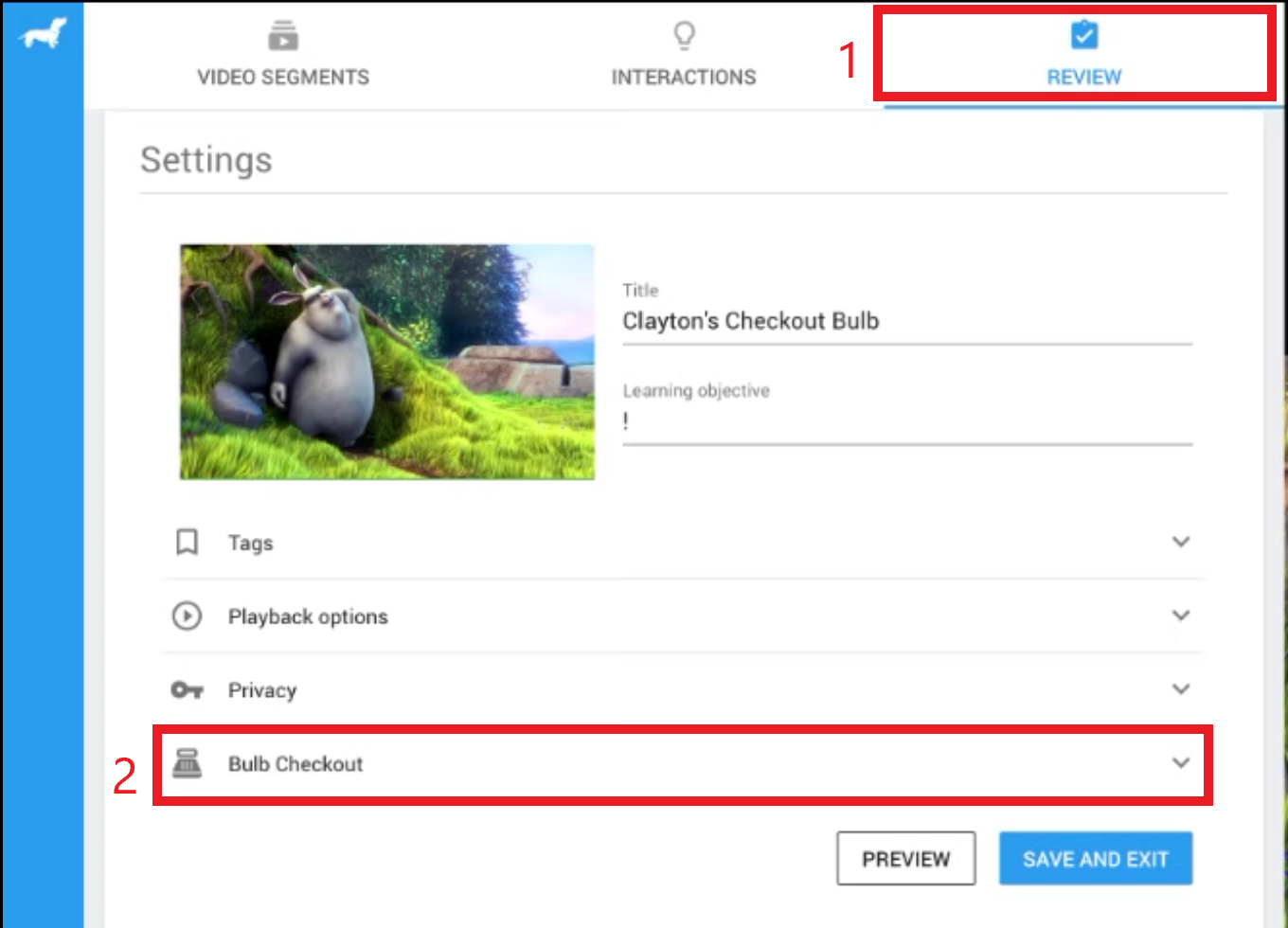
-
Click on the Action section to show the drop-down menu.
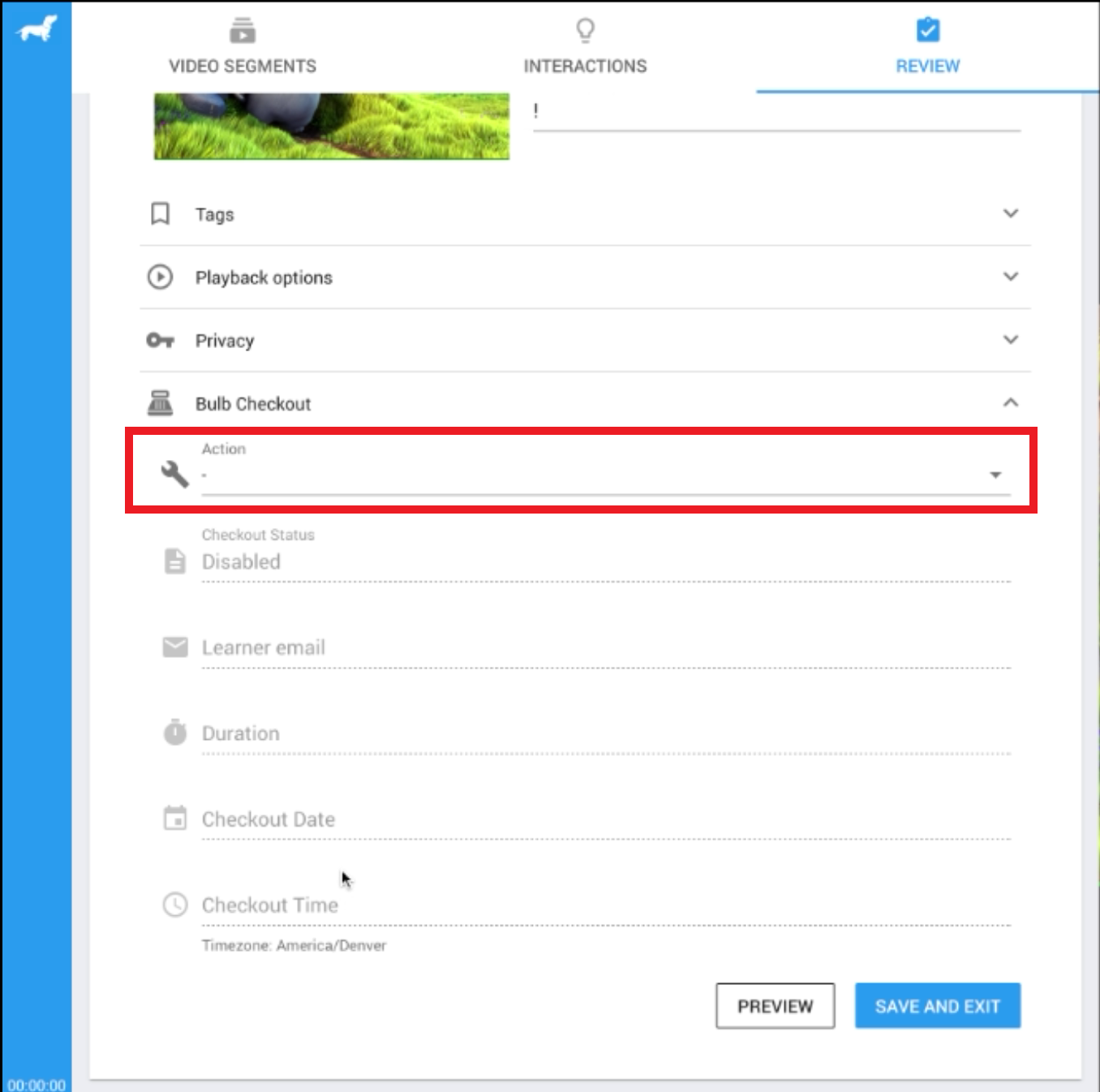
-
There are 5 options on the drop-down menu:
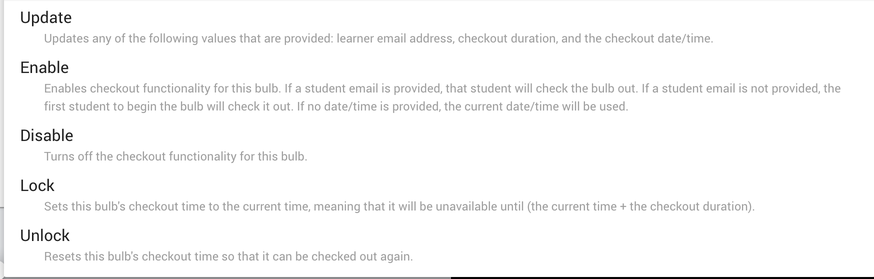
- Update: Updates any of the following values that are provided: learner email address, checkout duration, and the checkout date/time.
- Enable: Enable checkout functionality for this bulb. If a student email is provided, that student will check the bulb out. If a student email is not provided, the first student to begin the bulb will check it out. If no date/time is provided, the current date/time will be used
- Disable: Turns off the checkout functionality for this bulb.
- Lock: Sets this bulb’s checkout time to the current time, meaning that it will be unavailable until (the current time + the checkout duration).
- Unlock: Resets this bulb’s checkout time so that it can be checked out again.
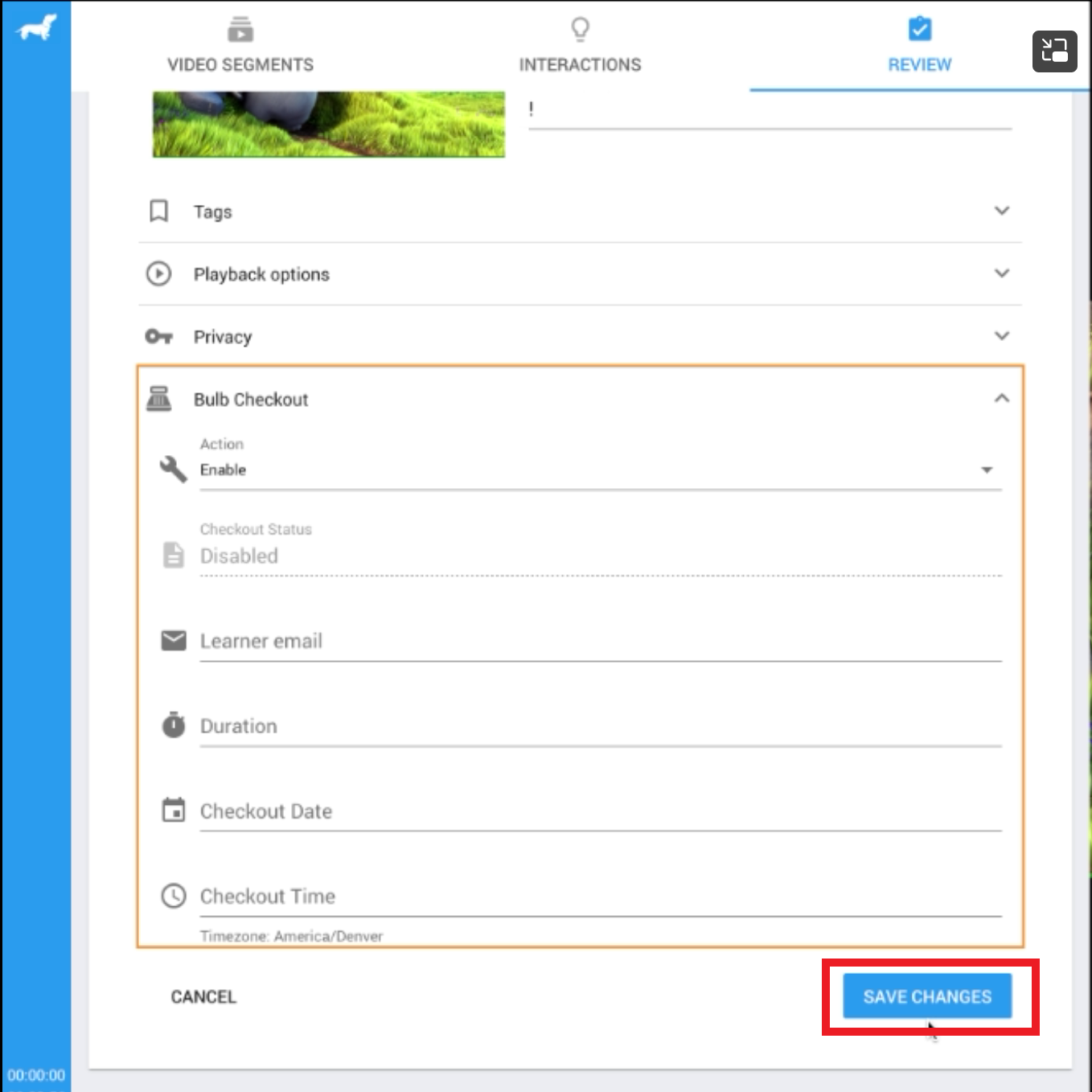
Select Enable to enable checkout functionality for this bulb.
-
After enabling checkout, the instructor can enter other information for the bulb checkout. Please note that these values are not required.
-
Click on Save change to save the progress and check out the bulb.
What bulb checkouts look like
When a learner checks out a bulb, they can attempt the bulb up until the bulb's internal timer runs out.

Warnings and errors
If a bulb is currently in use by a learner, other learners will be shown this warning if they try to access the bulb during the period of time the bulb is checked out to the first learner.

Once a bulb’s internal checkout timer has expired, the learner who was previously viewing the bulb will be shown the following blue screen warning and will be unable to view the bulb until it is checked out to them again:

If a learner is inactive on a bulb for more than 30 minutes, they will be shown the warning below. They will need to have the bulb checked out to them again before this warning is removed.

FAQ
How long do I have to finish my bulb attempt?
This is determined by your instructor. We recommend that instructors include the checkout time duration in their assignment description in the LMS.
I was halfway through answering a question when my time ran out. Was my question submitted?
No, if you have not clicked Submit yet on a specific interaction before your time ran out, your selected or typed answer will not have been sent to PlayPosit.
Can a learner check out the bulb more than once?
Yes, a learner can check out the bulb more than once as long as the bulb is either available or their checkout is still valid.
Can I as a learner refresh the page without my checkout expiring or resetting?
Yes, you can refresh the player without your checkout expiring or resetting.