.png)
Barbri Technical Support
In this article
Troubleshoot bulb playback
If a bulb is having trouble with playback or the browser window will not load, try the following troubleshooting steps first.
1. Update browser/try a different browser. PlayPosit tests all features and functionalities on the latest versions of browsers. If a browser is not updated, it could contribute to issues in video playback.
- Click here for Chrome update instructions.
- Click here for Firefox update instructions.
- Click here for Microsoft Edge update instructions.
- Click here for Safari update instructions.
2. Clear browser cache and cookies. Clearing cache and cookies can clear up space to allow for faster video loading and help resolve playback issues.
- Click here for information on how to clear cache/cookies on Chrome.
- Click here for information on how to clear cache/cookies on Firefox.
- Click here for information on how to clear cache/cookies on Microsoft Edge.
- Click here for information on how to clear cache/cookies on Safari.
3. Try an incognito browser window. Sometimes a browser's extensions or add-ons may be interfering with PlayPosit functionalities.
- Click here for assistance with creating an incognito window in Chrome.
- Click here for assistance with creating an incognito window in Firefox.
- Click here for assistance with creating an incognito window in Microsoft Edge.
- Click here for assistance with creating an incognito window in Safari.
Try a different device type. If the bulb is being viewed on a tablet or mobile device, try accessing it on a desktop or laptop computer. If already on a computer, access the bulb on a different device.
Try a different network. If the bulb is being accessed on wireless internet, try connecting to a different network. Some issues can be easily resolved by switching to a faster internet connection when streaming video. It is recommended to have at least 10 Mbps when streaming videos through PlayPosit. Click here to test the internet connection speed.
Virtual classroom experience
The virtual classroom is a unique type of bulb that continuously plays until completed for the learner.
In a virtual classroom, certain functionalities will be limited for the learner.
- The play/pause button is intentionally disabled in a Live session bulb. When the session begins, the video will play. The video will only pause for interactions to appear.
- The pace of the learner experience is set by the live session moderator. The timeline control will not be available to the learner to rewind or fast forward.
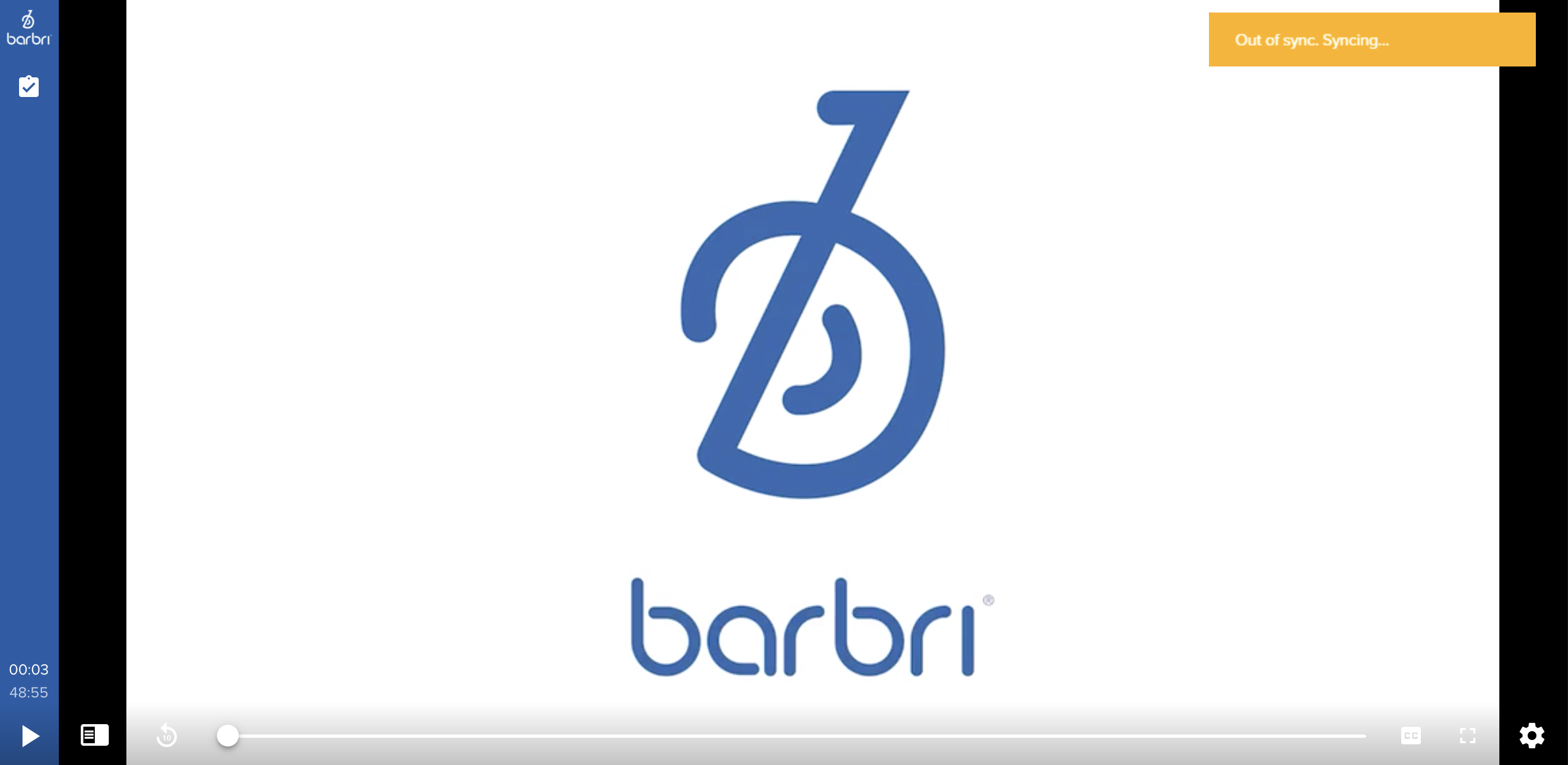
- A learner may leave the session by refreshing or exiting the bulb’s browser tab Note: When the learner returns to the Live session bulb some time may have elapsed. A pop-up message will display “Out of sync. Syncing…” as the player adjusts to the Live session play time.
- Interactions can be answered by the learner and interactions will display a countdown timer. The time remaining will be displayed in the top left corner of the interaction as a numeric value in seconds counting down to 0.
- After the timer expires, the interaction will be locked and the learner will no longer be able to answer the interaction on screen. As the live session proceeds, a countdown will be displayed in the top left corner of the interaction showing the time remaining until the class resumes.
- For selected interaction types, analytics will display after each interaction timer expired at the bottom of the interaction. The analytics show the distribution of live session attendees’ responses in the current session.
- A learner can access the table of contents or Sli.do chat at any time by clicking the appropriate icons in the left sidebar at any time during the Live session bulb.


Bulb
Play a bulb
Access bulbs through the PSP. Once a bulb is opened, a toast message will appear to expand the window for the best experience. Click Expand to watch the video in full screen or click Ok to keep the video the same size. 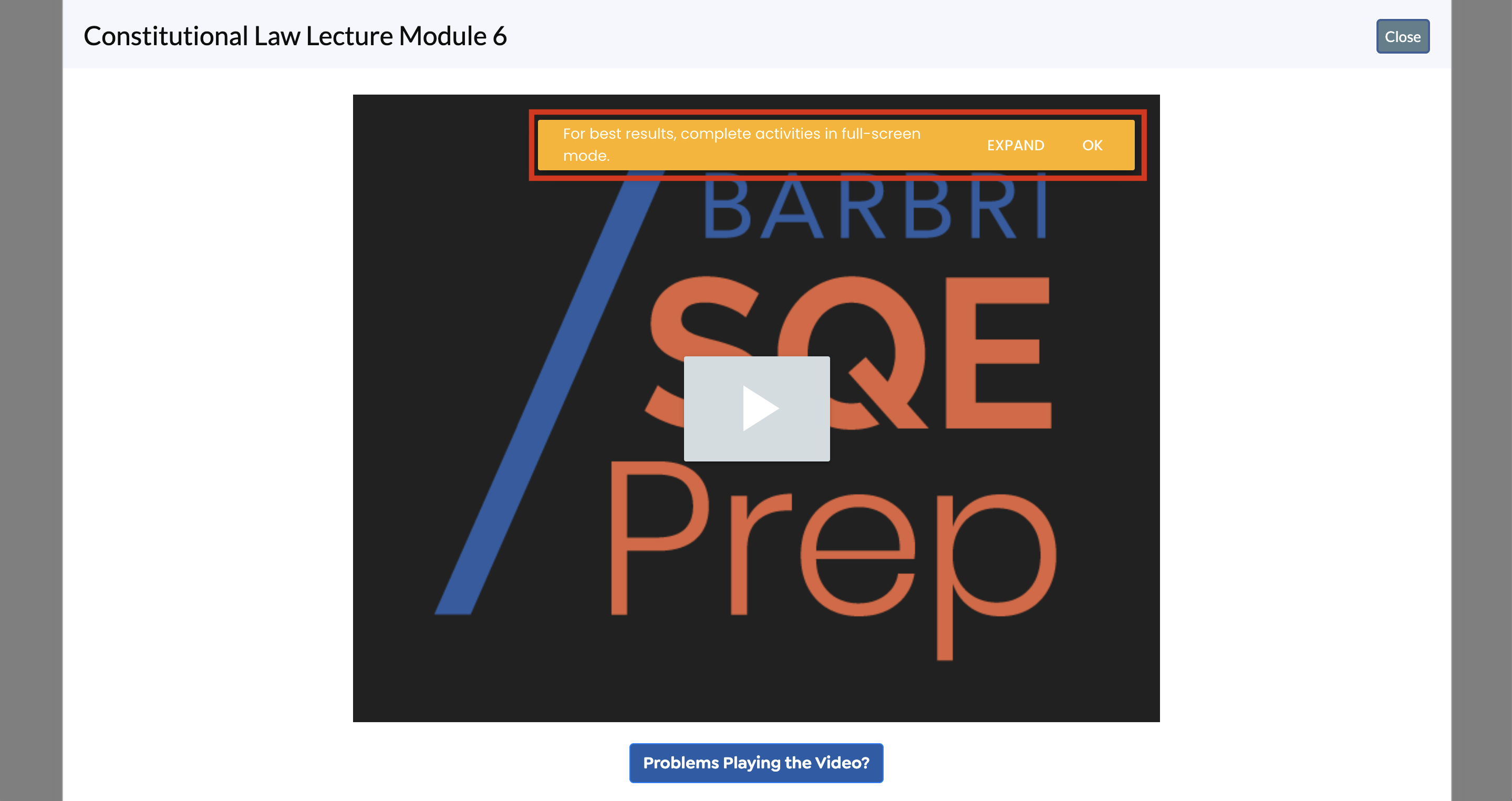
To view the video in full screen once the message is gone, click the expand icon on the lower-right corner of the video. 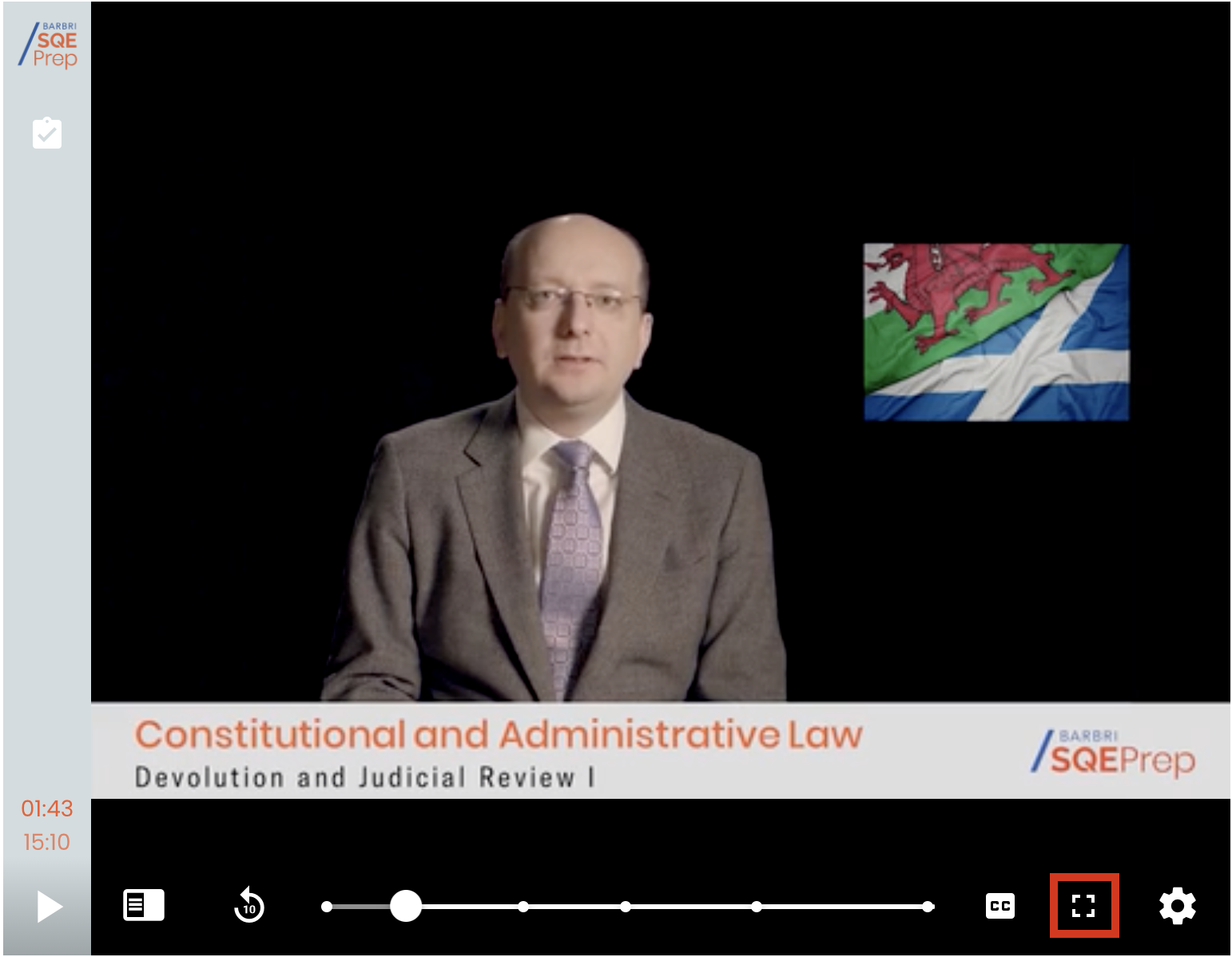
Click the play button to start watching. As the video plays, interactions will appear on the screen. The viewer has the ability to answer or skip over the questions. 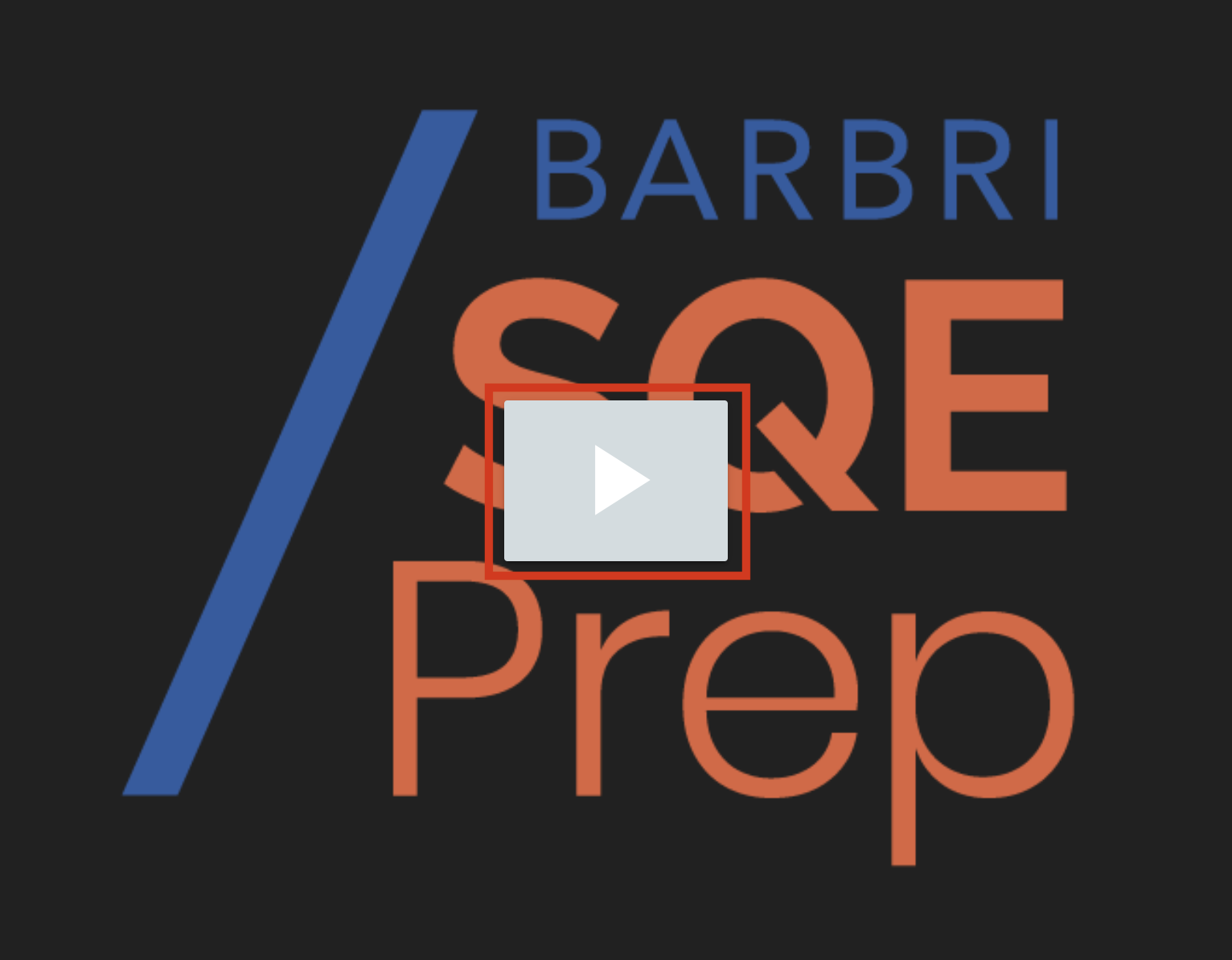
Enable captions
To enable captions, click the cc button on the lower-right side of the screen. To disable captions, click the same cc button. 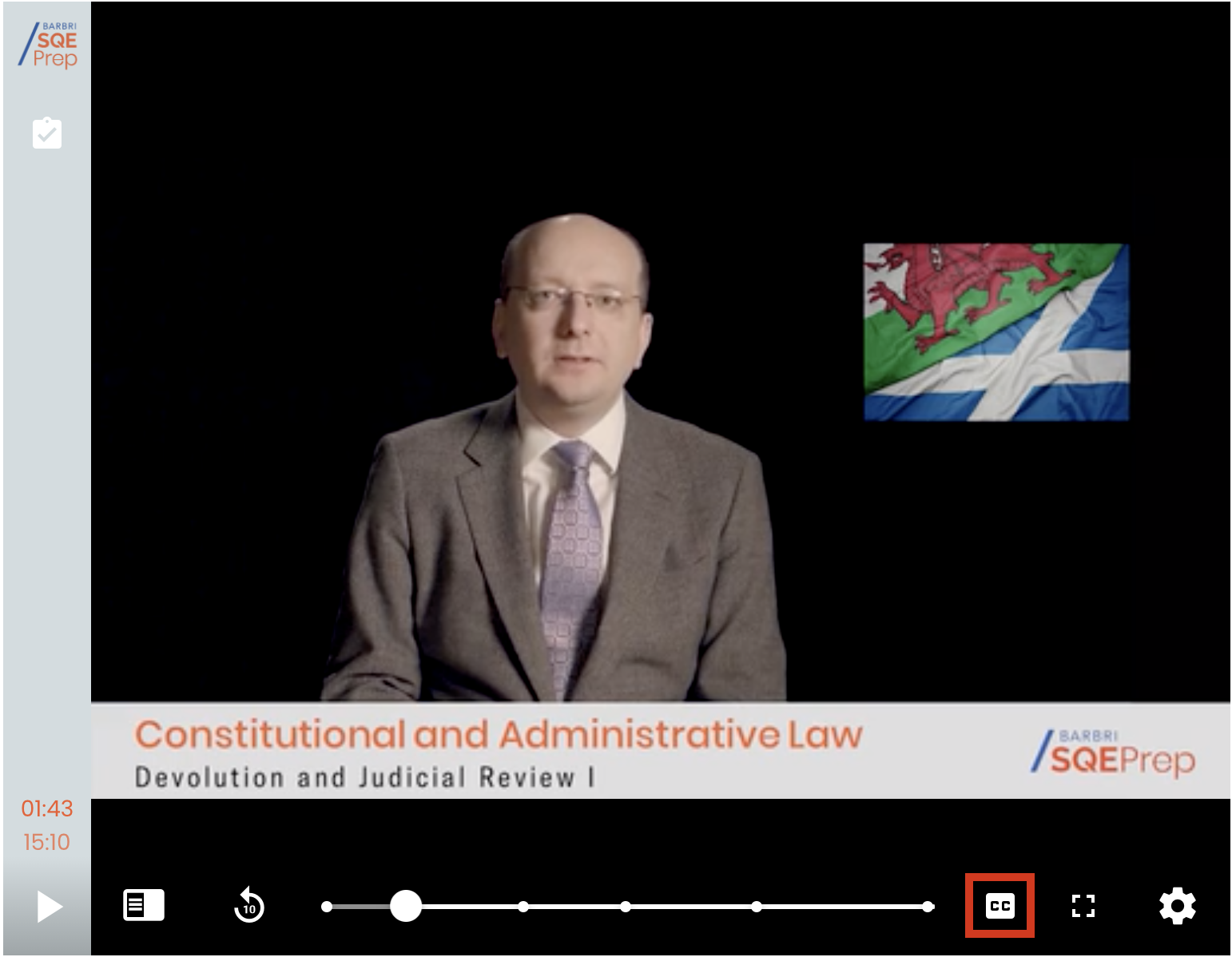
Access transcripts
To access transcripts, first, enable the captions. Then, select the menu button in the lower-left side of the screen and click Transcript. Click a specific line to jump to that point in the video. 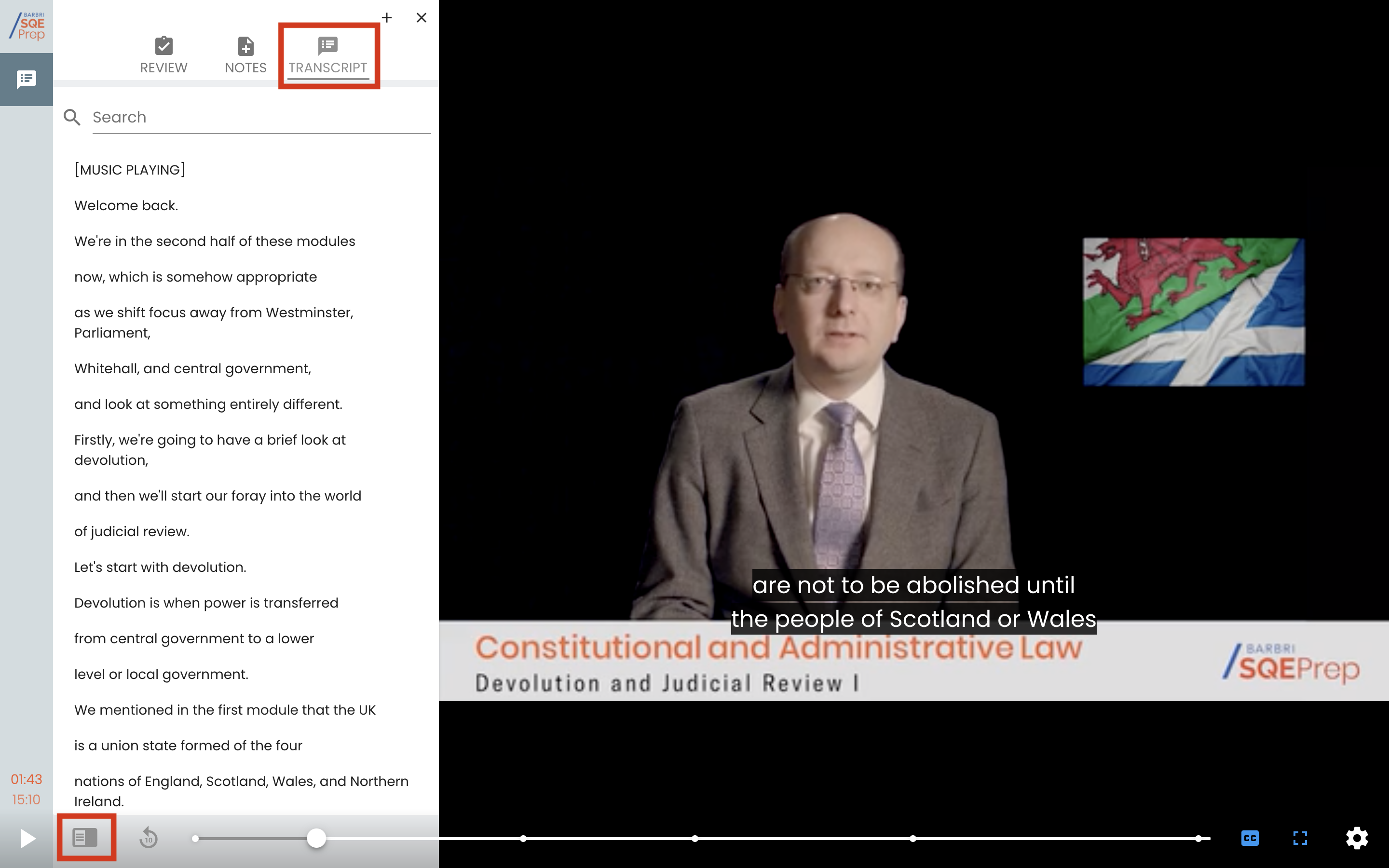
Fast forward
Viewers have the ability to fast forward through the entire video by dragging the playhead forward and backwards along the scrub bar.

Change speed
Viewers have the ability to speed up or slow down the video. To adjust the speed, click the Settings gear icon and adjust the speed. 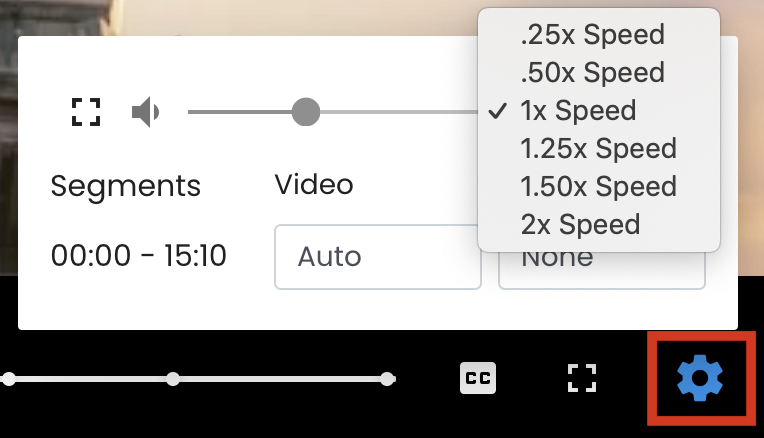
Take notes
Viewers can take notes that will be saved to the timeline of the video. To take notes, click on the Sidebar icon, then on the Notes tab. Type into the bottom of the Notes tab and click the arrow icon next to it to save notes. 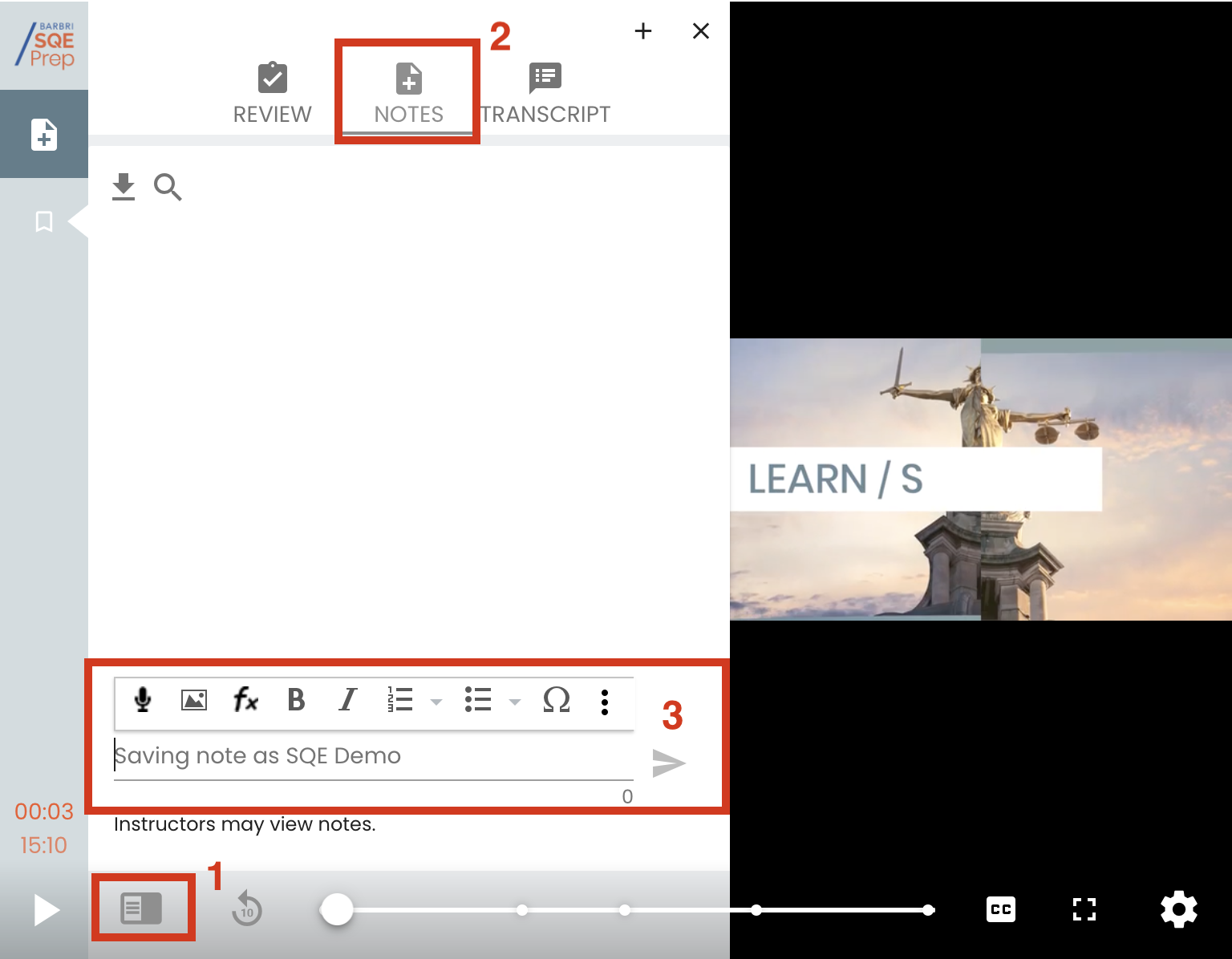
Resume playback
All progress will be saved throughout the video. If a viewer needs to leave and come back to the video, all answers and progress will be saved. When a learner returns to the bulb, a pop-up notification will appear with the option to resume playback at the timestamp when the video was stopped. Click Resume to return to the timestamp.Note: This option is only available if the learner has watched at least 60 seconds before closing out. 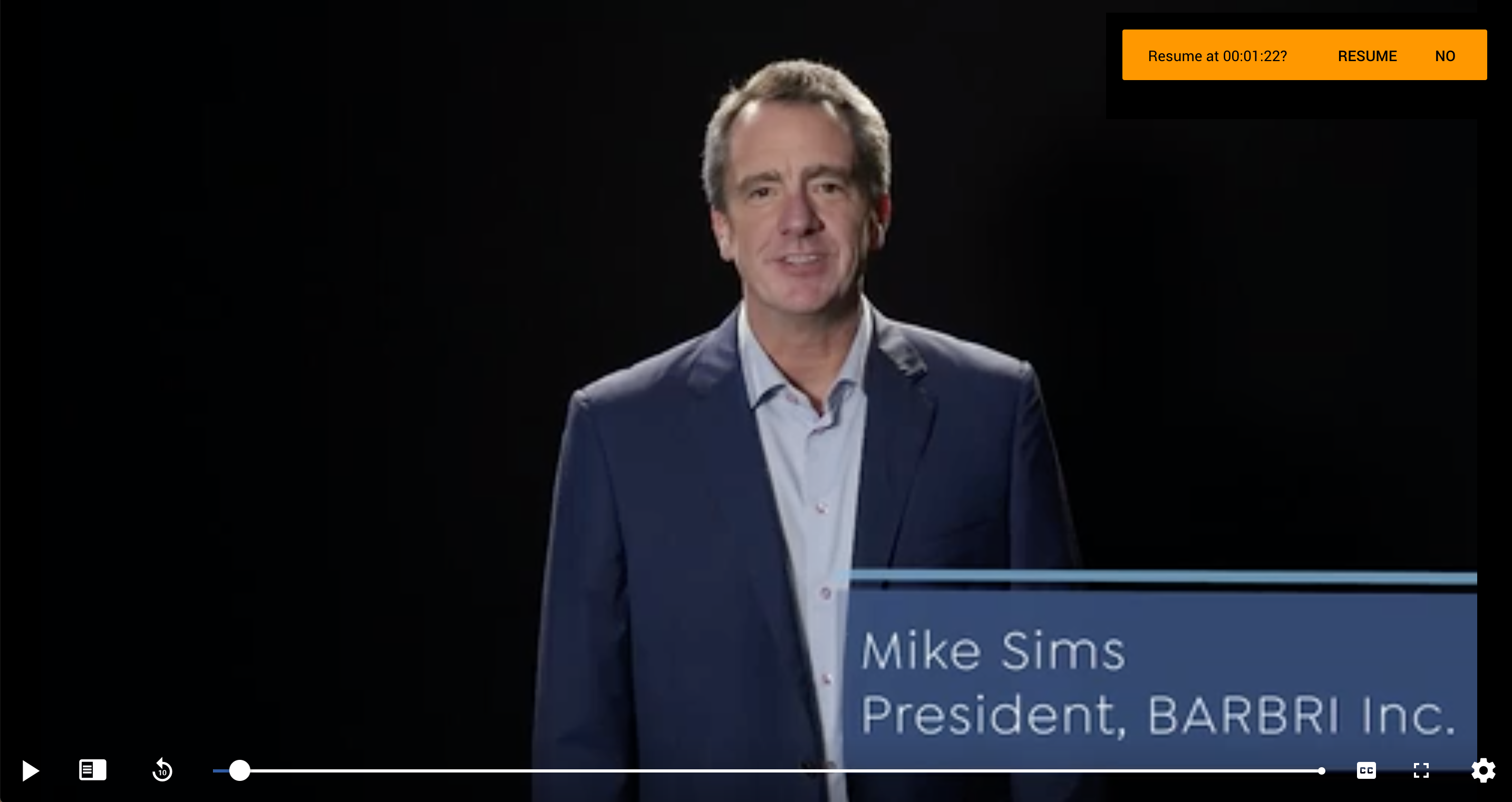
Replay
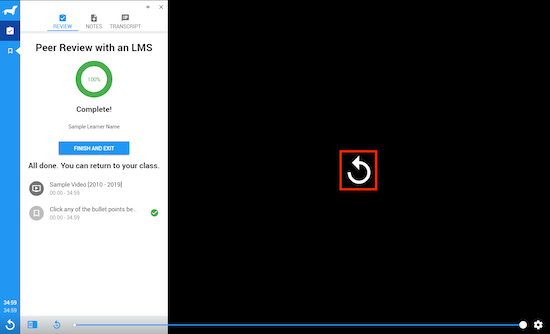
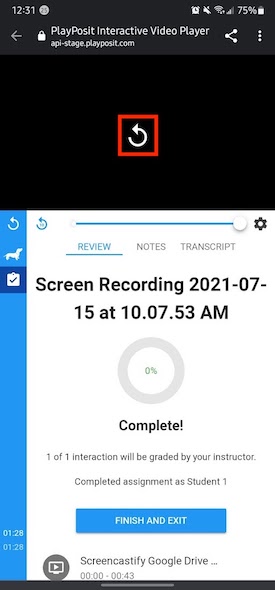
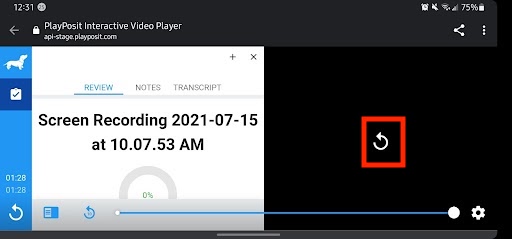
Once a Bulb has been completed, an optional Replay Button will appear, allowing for the Bulb to be started from the beginning.
View report
Once the bulb is completed and all interactions have been answered, a report that includes all responses and notes can be viewed, saved, and/or printed. To access the report, click View My Results on the sidebar. This will open a new tab with the bulb report that can either be printed out or saved as a PDF. 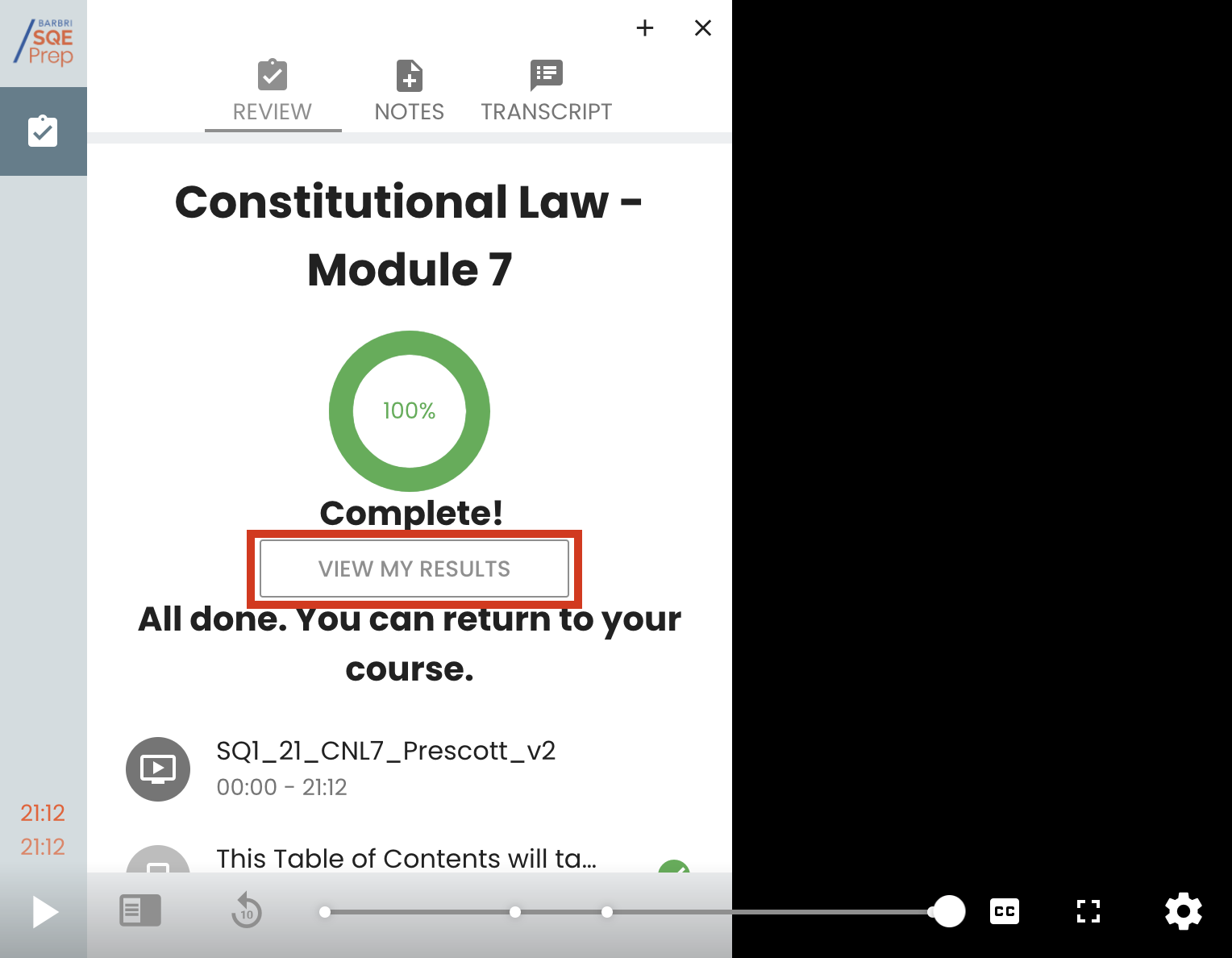
Playlist
- Access the playlist through the PSP. For a better user experience, please click the full-screen icon on the top right to enter the full-screen mode. To exit the full-screen mode, please press the ESC button on the keyboard.
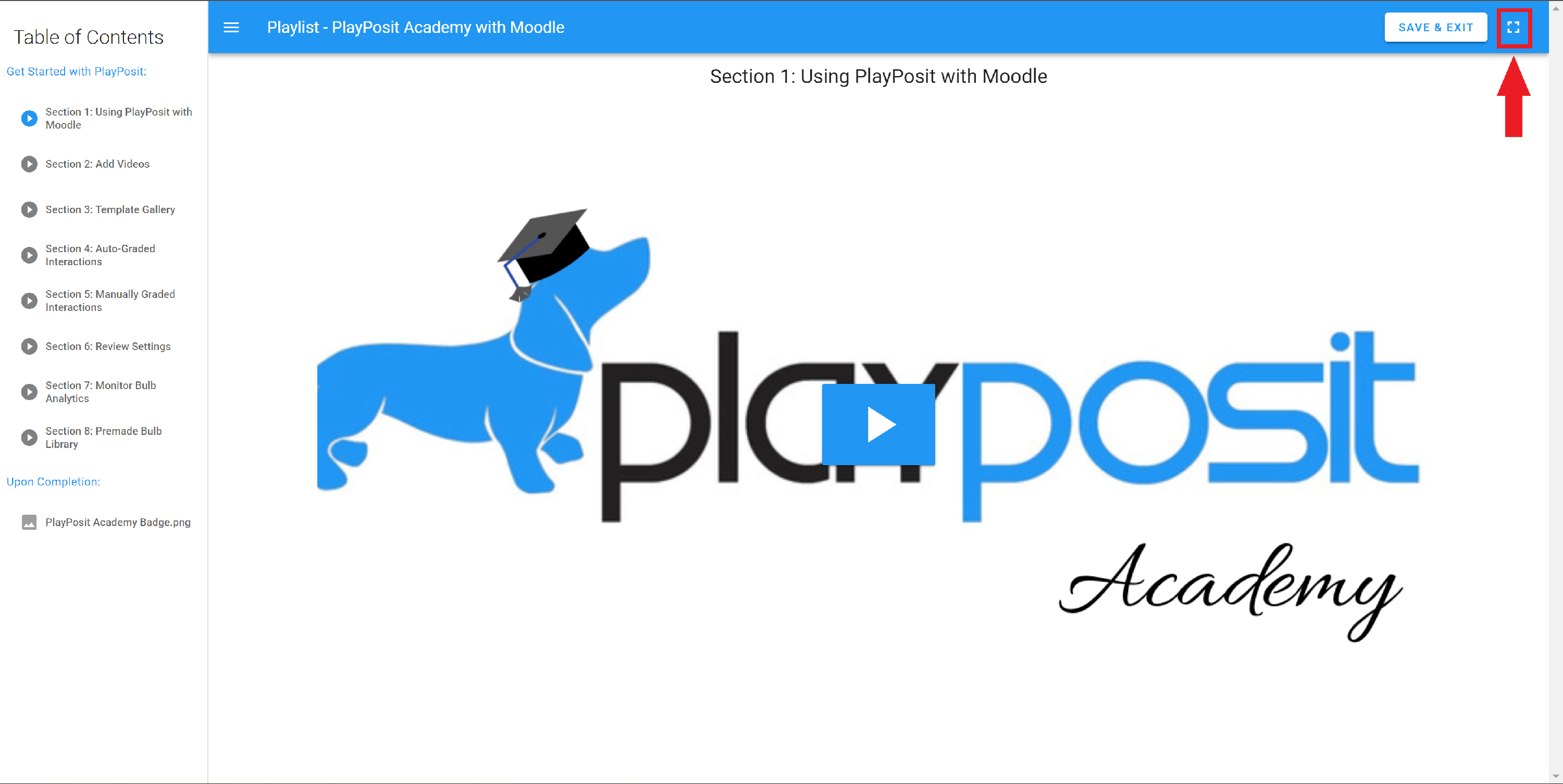
- The table of contents can be found on the left side of the screen, and learners can click on the title of the Bulb or item to view it. Please complete all the items on the table of contents to complete the playlist.

- When a Bulb or item is completed, a green checkmark will appear in front of the completed Bulb or item. Learners can revisit the completed Bulbs and items by clicking on their titles.

- When a Bulb or item is completed, please click on the Next button on the green toast message to move to the next item in the playlist.

- Learners need to meet the following requirements to complete the Bulbs or items in the playlist:
- Bulbs: Answer all the required questions and reach the last timestamp of the Bulb.
- PDFs: Reach the last page of the PDF.
- Images, websites, text items: Stay on the page for more than 5 seconds.
- Attachment(DOC, CSV): Download the attachments.
- At any point, learners can use the Save and Exit button on the top right to save all completed work and exit the playlist.


