.png)
Flip-Ed Playlist- Learner Workflow
In this article
Learn how to navigate the playlist modules.
Create an account
Before accessing the modules, you will need to sign up for a free PlayPosit account.
- Go to https://www.playposit.com/join.
- Select Student then create login information using a current email address.
Access the playlist
The playlist URL will be provided to you by your instructor.
- Copy and paste the URL into your browser where you are logged into PlayPosit. If you are not logged into PlayPosit, you will be prompted to log in with your student account.
- Once you are logged in, a payment screen will appear. Enter payment information and submit.
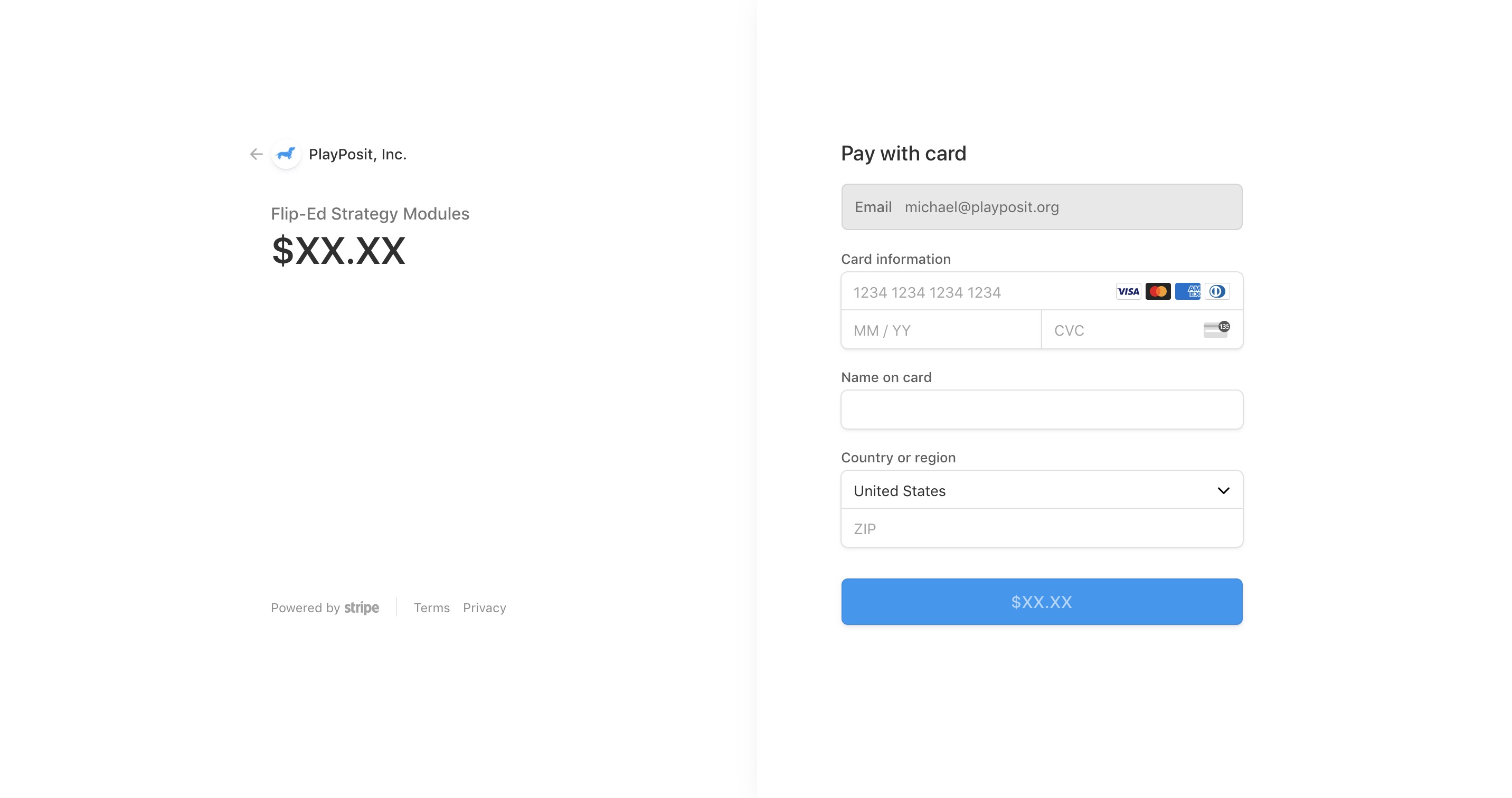
- After you have submitted payment, you will have access to the Flip-Ed Strategy Modules.
Navigate the playlist
Now that you have access to the playlist, you are able to save your progress, close out, and return using your PlayPosit login credentials.
Click on the triple line menu bar to expand the modules. 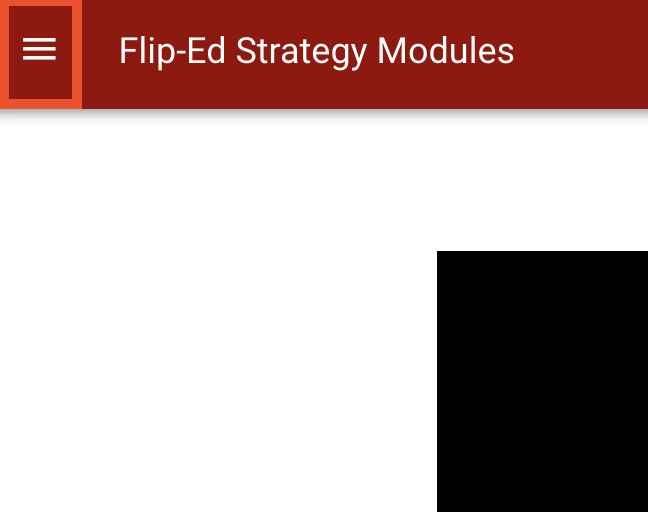
Each module is numbered. Within each module, there are three interactive videos called bulbs; Comprehension, Explainer, and Application. 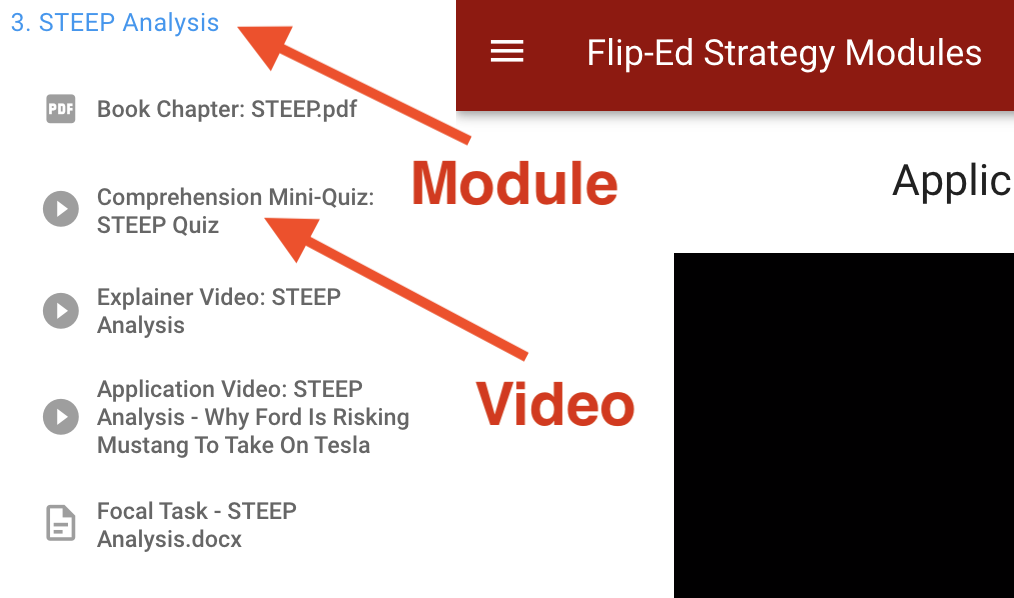
There are also two attachments per module; the book chapter and the focal task. Click on the attachments to download them. 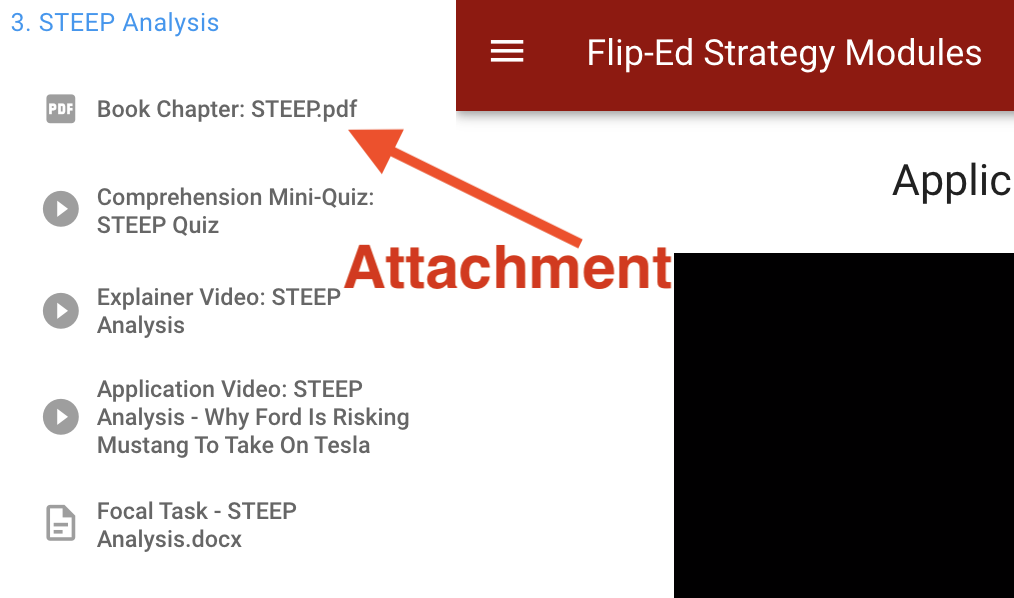
Play a bulb
Click the Play button icon to play each bulb within the module.  Click on the settings icon in the bottom right corner of your screen to: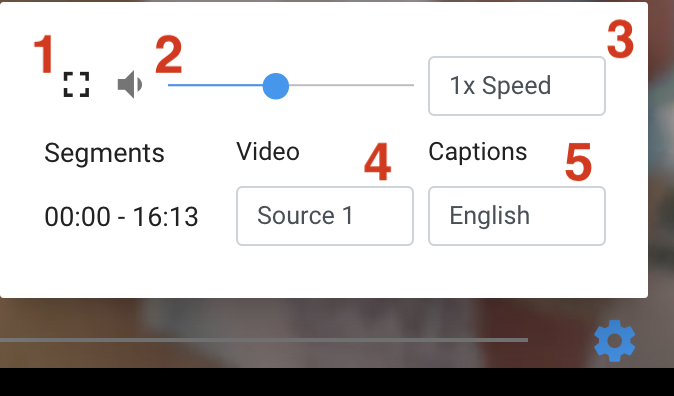
- Enter fullscreen
- Adjust volume
- Adjust playback speed
- Change the video stream source of the videos in the bulb (especially important if one of the sources isn't working)
- Enable or disable captions (if available)
Questions will pop up in the left sidebar menu as you are watching the video. Answer the question then click Submit. 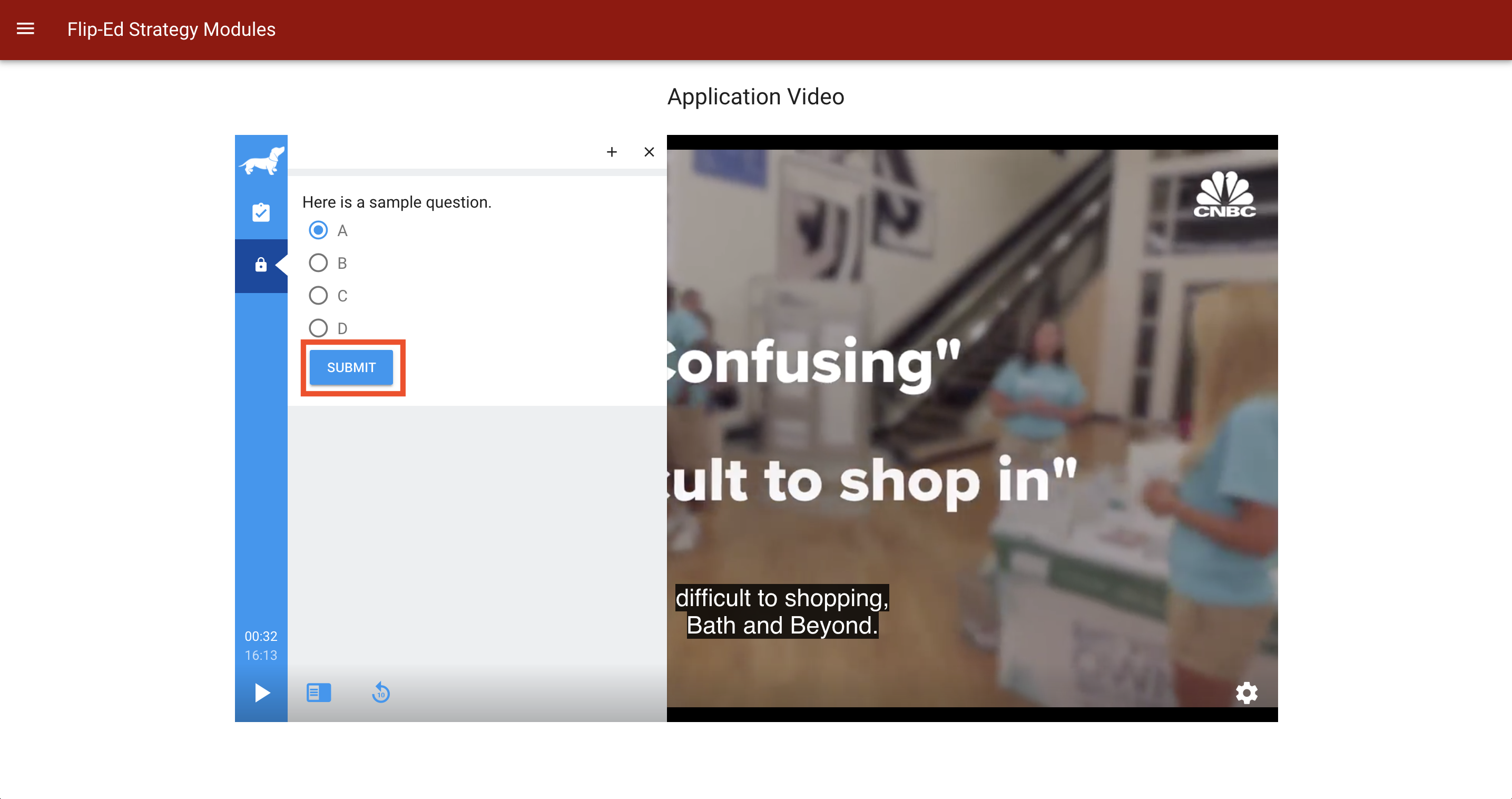
After you submit your response, you will receive automatic feedback to let you know if you were correct or incorrect. Click Continue to start playing the video. 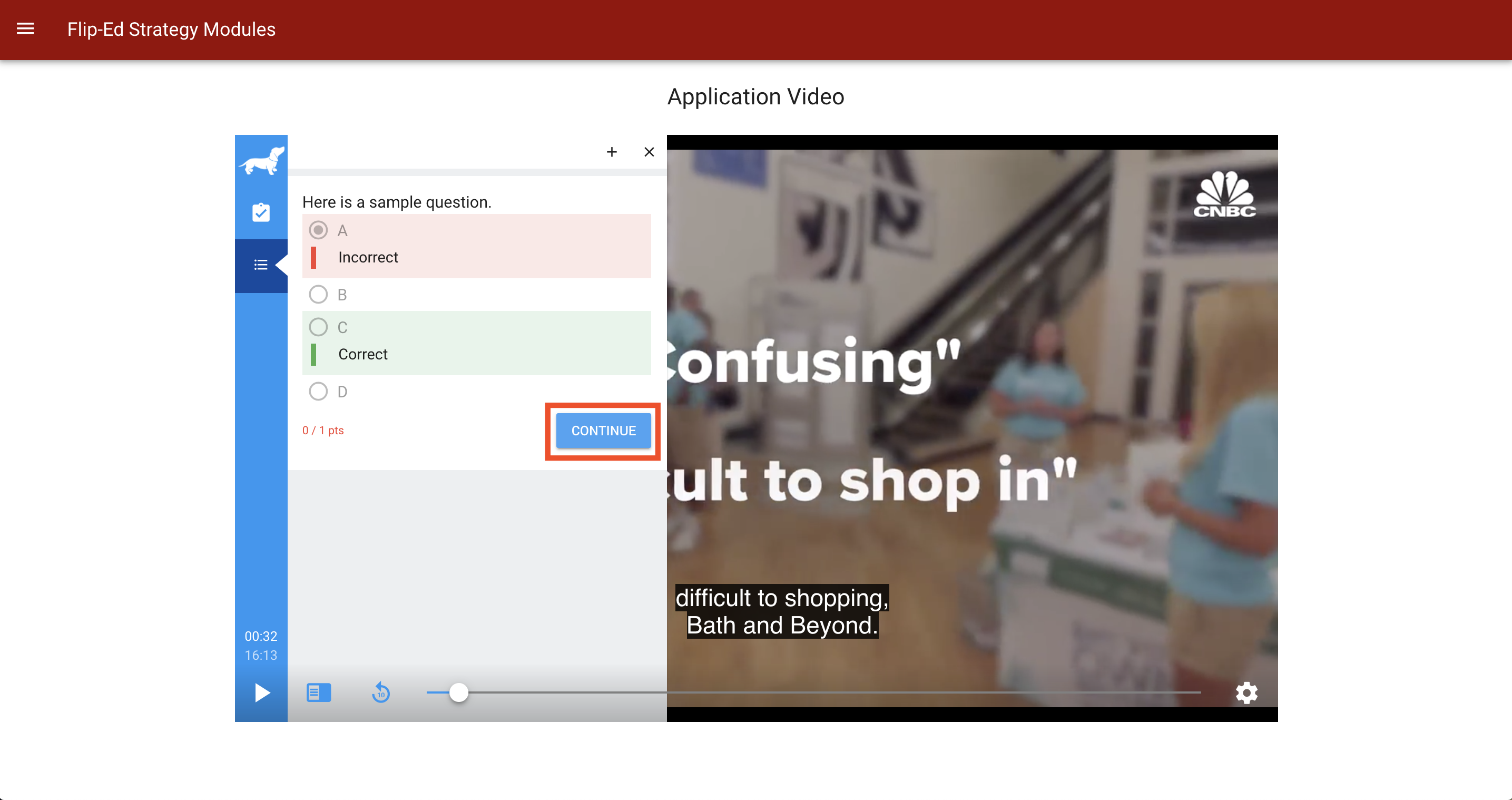
View transcripts
To view navigable transcripts follow these steps.
Enable captions from the settings gear icon menu. 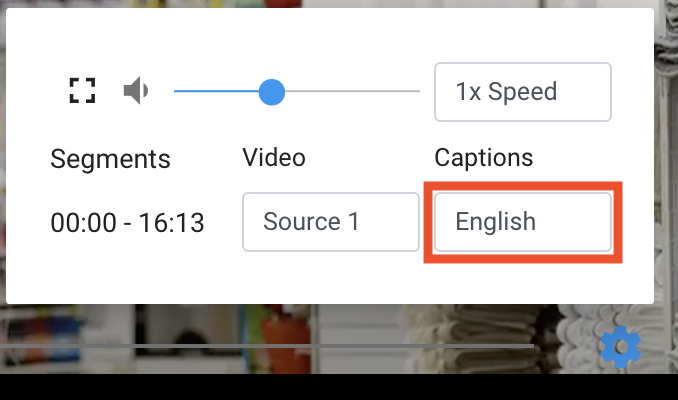
Select the sidebar icon. 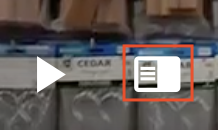
Click the Transcripts tab. Transcripts will appear as the video plays. Click on any transcript line to be brought to that specific part of the video or search for keywords in the transcript. Please note that you are not able to skip ahead if your instructor does not have fast forward enabled. 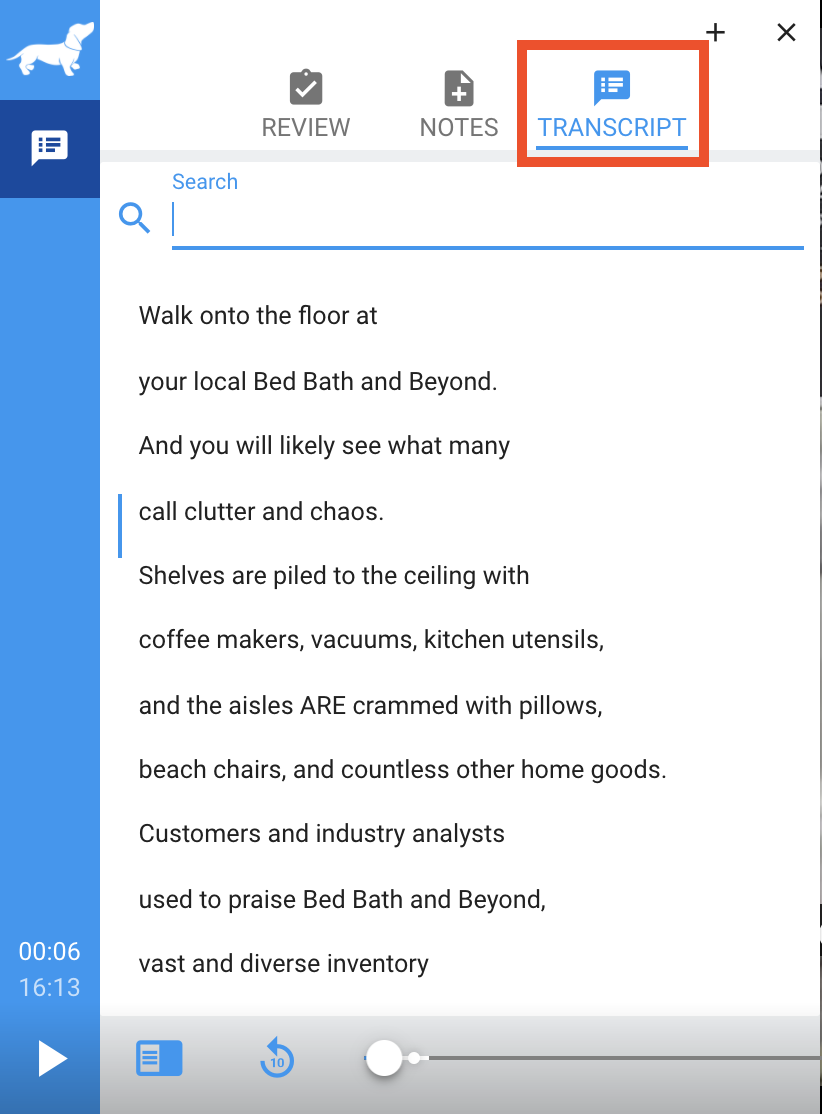
Take notes
If you need to take notes on the video, click on the sidebar icon, and then on the Notes tab. Type your note in to the bottom of the Notes tab and click the blue icon next to it to save your note. 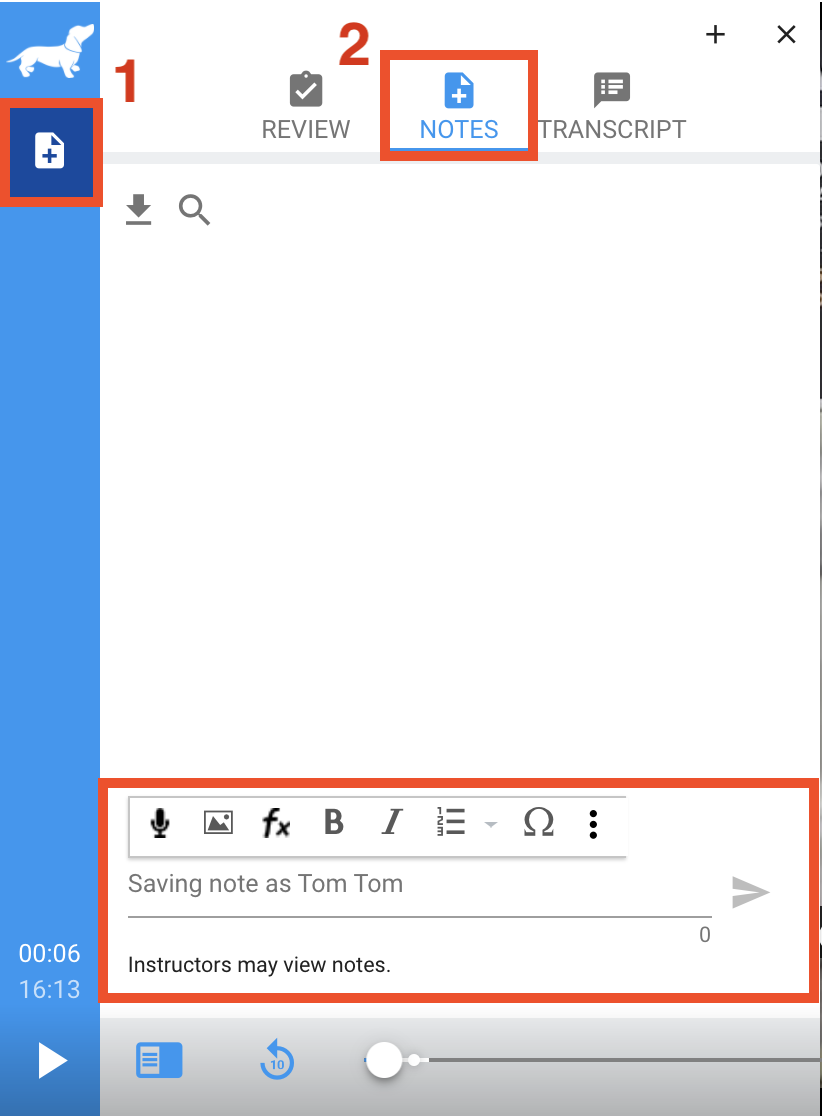
Each note you make will also save a clickable timestamp that you can use to jump back or forward to the point in the video when you made that note. You can also download a text file of your notes by clicking on the grey download icon at the top of the Notes tab. 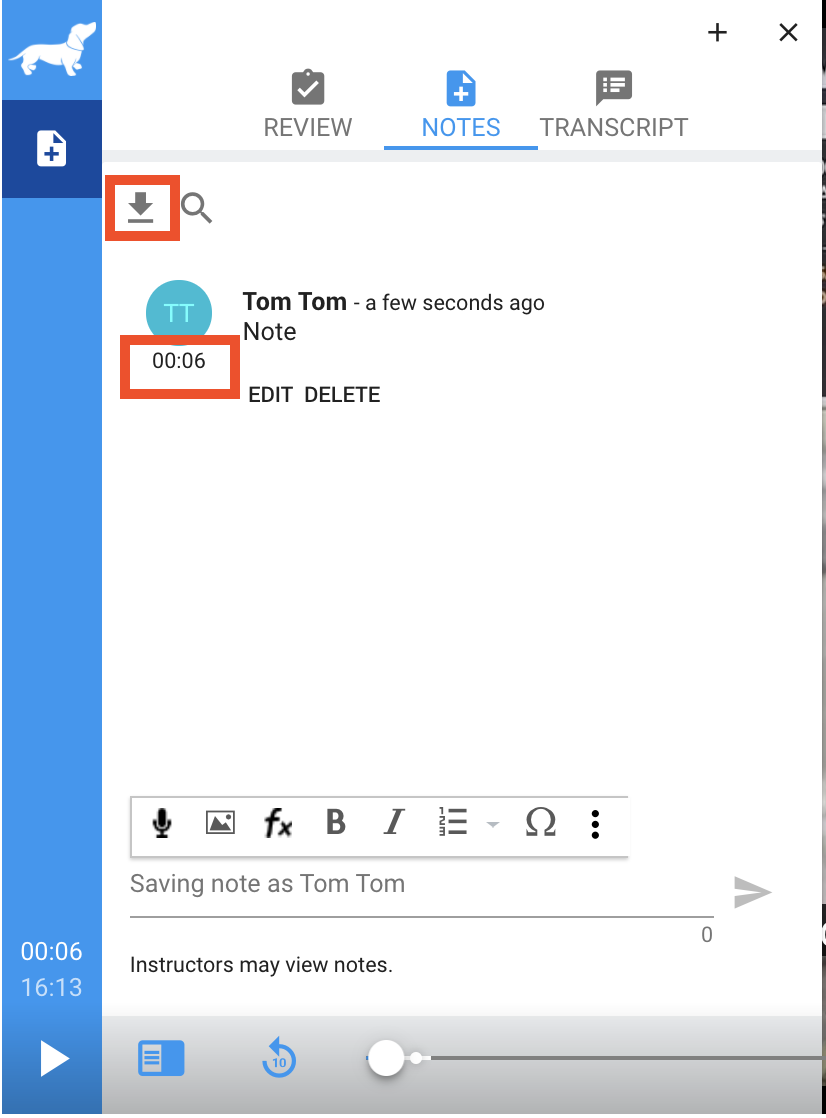
Complete a bulb
At the end of the video, you will see a confirmation page on the left side of the video and a green pop up that notifies you the video is complete and to click next to proceed to the next video. 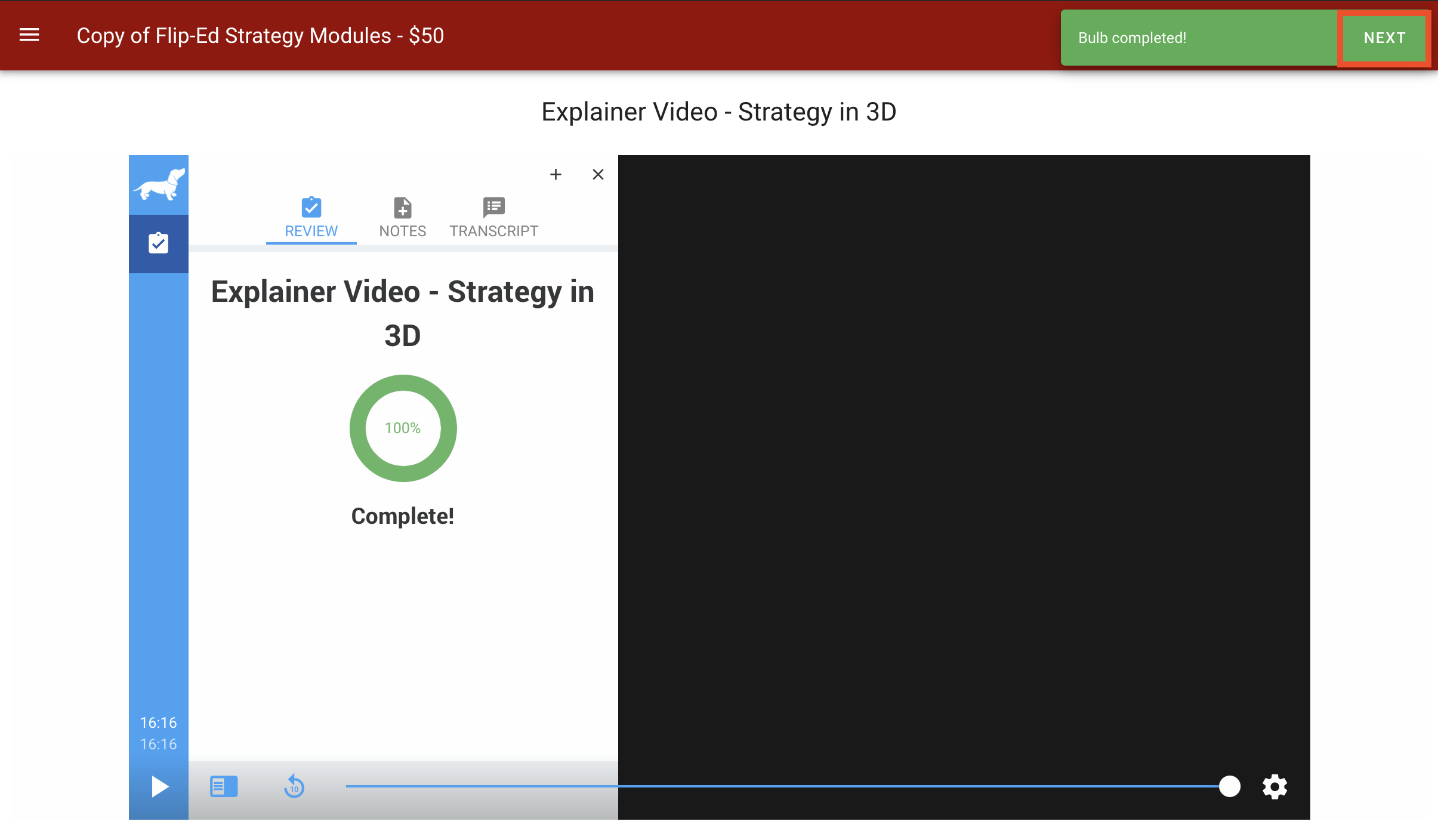
You can proceed to the next video by clicking next or click the triple line sidebar menu to open the module playlist. Once you have completed the video, a checkmark will appear next to the video. 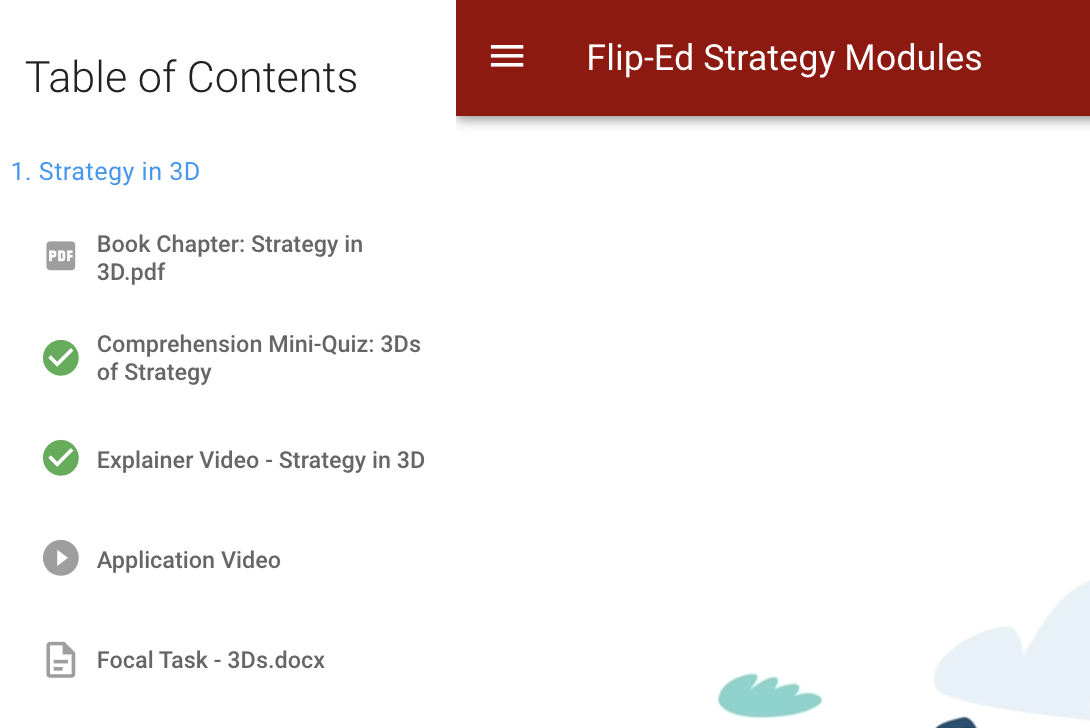
If you close out of the module, your progress will be saved. If you stop in the middle of a video, move the toggle along the scrub bar to fastforward to the point where you left off.
Return to the playlist
- Go to www.playposit.com/login and log in with your student account.
- Select the class from the main Learner Dashboard.

- Click on the Playlists tab then select the Playlist.


Note: Bulbs that appear in a playlist will not appear in the Bulbs tab.