.png)
Flip-Ed Playlist- Instructor Workflow
In this article
Learn how to navigate the playlist modules.
Create an account
Before copying the playlist into your account, you will need to sign up for a PlayPosit account if you don't already have one. This is where the playlist will be saved, where you will gain access to the unique link to provide to learners, and where you will monitor learner data.
- Go to https://www.playposit.com/join.
- Select Instructor then fill out log in information using a current email address. Sign up for the Basic Account.
Access the shared playlist
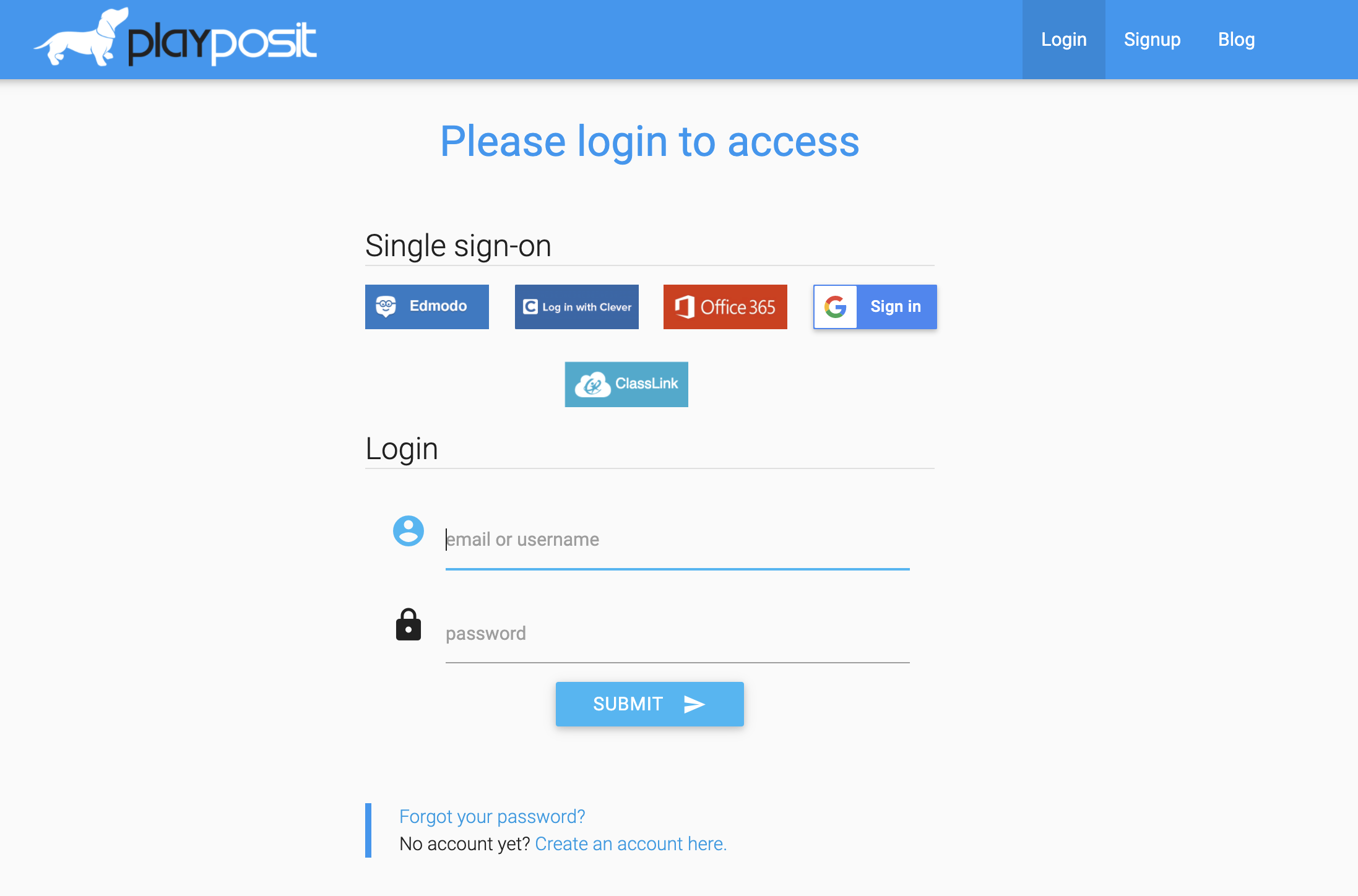
The playlist link will be provided through email or from the university bookstore. Copy and paste the URL into the browser where you are logged into PlayPosit. If you are not logged into PlayPosit, you will be prompted to log in with an instructor account.
Once logged in, preview the playlist by toggling off Edit Mode. 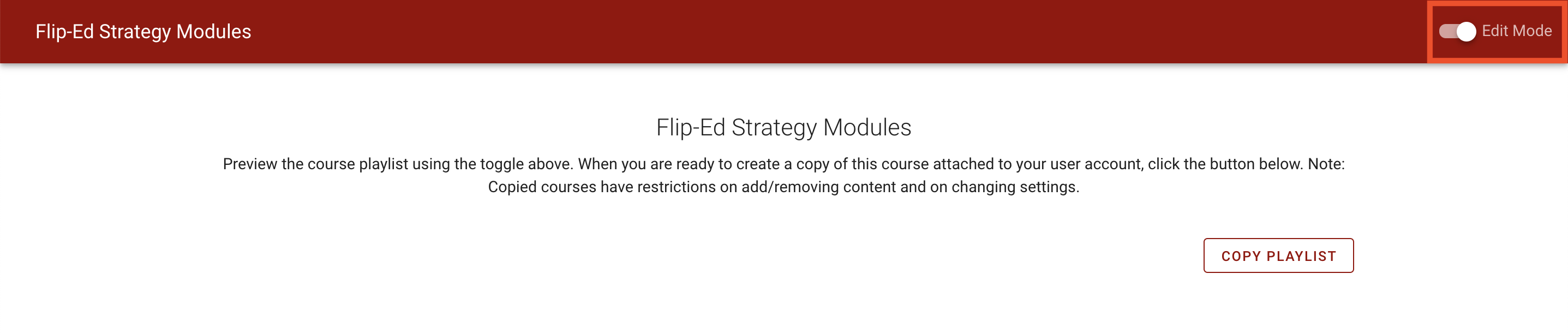
Copy the playlist
Follow the directions below to copy and save the playlist into your account.
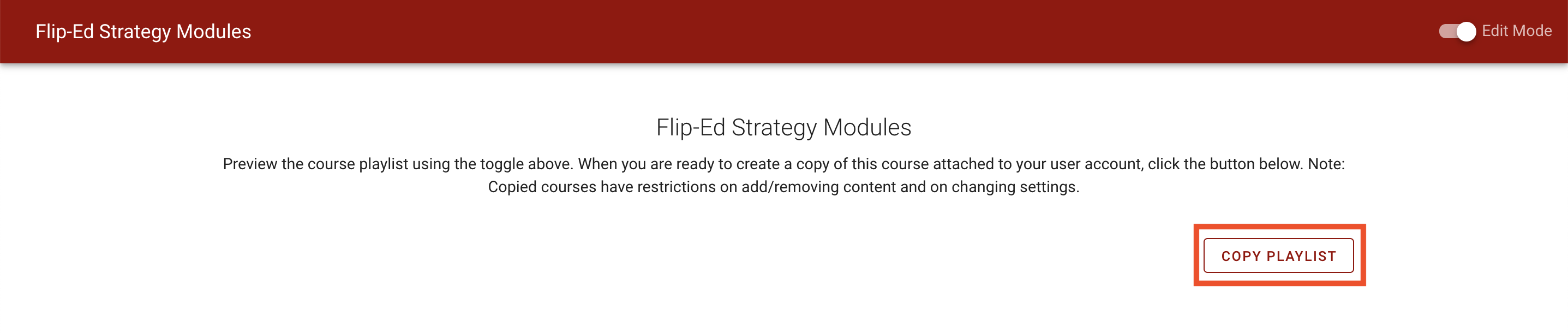
- If Preview Mode is toggled on, toggle it off to return to the copy screen. Select Copy Playlist.
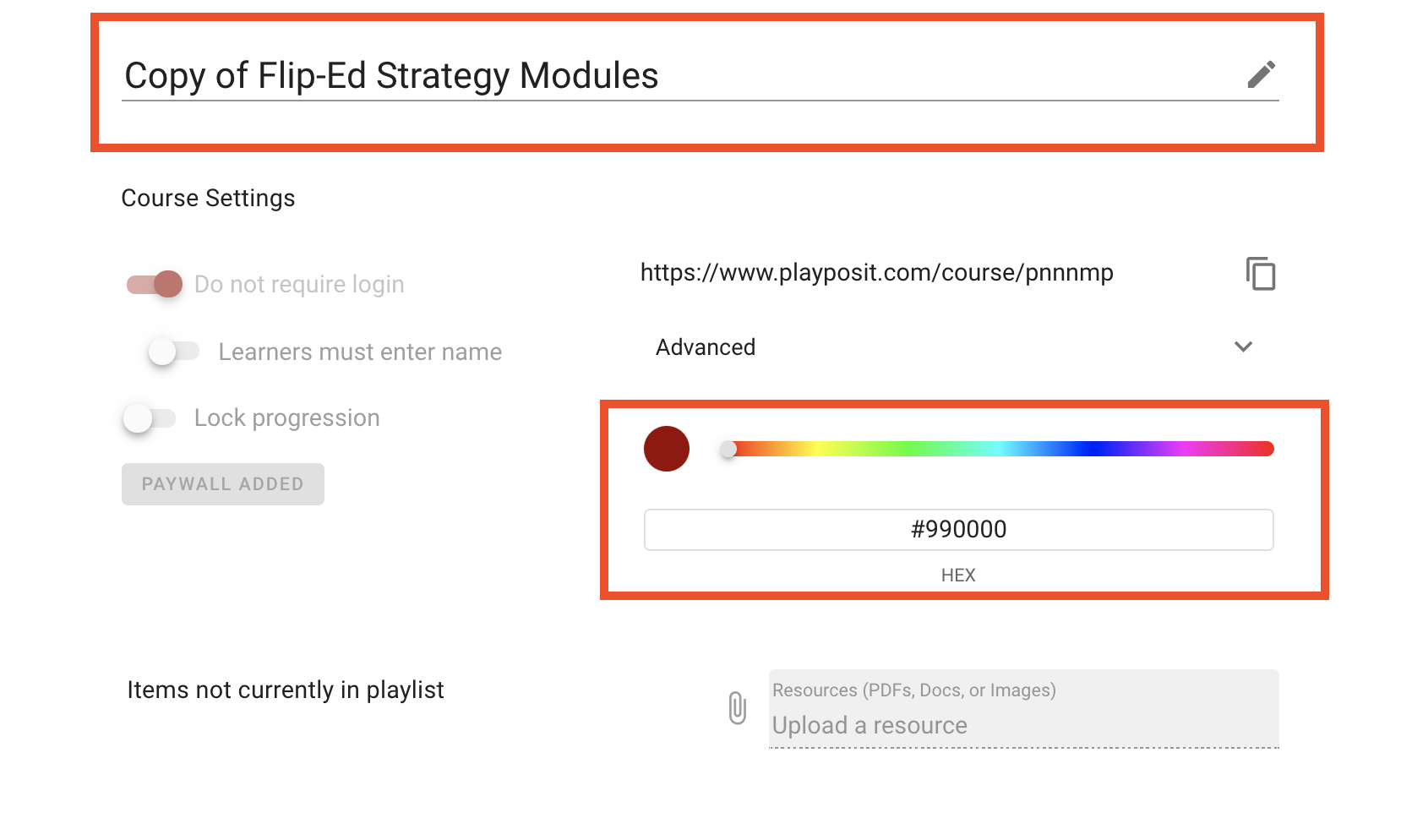
- The Playlist designer page will open. Edit the title and customize the color branding. Note: You are not able to edit the modules or settings of a copied playlist.
Course already copied
Instructors who choose to use the same Playlist from the previous semester will experience this blue screen error message:
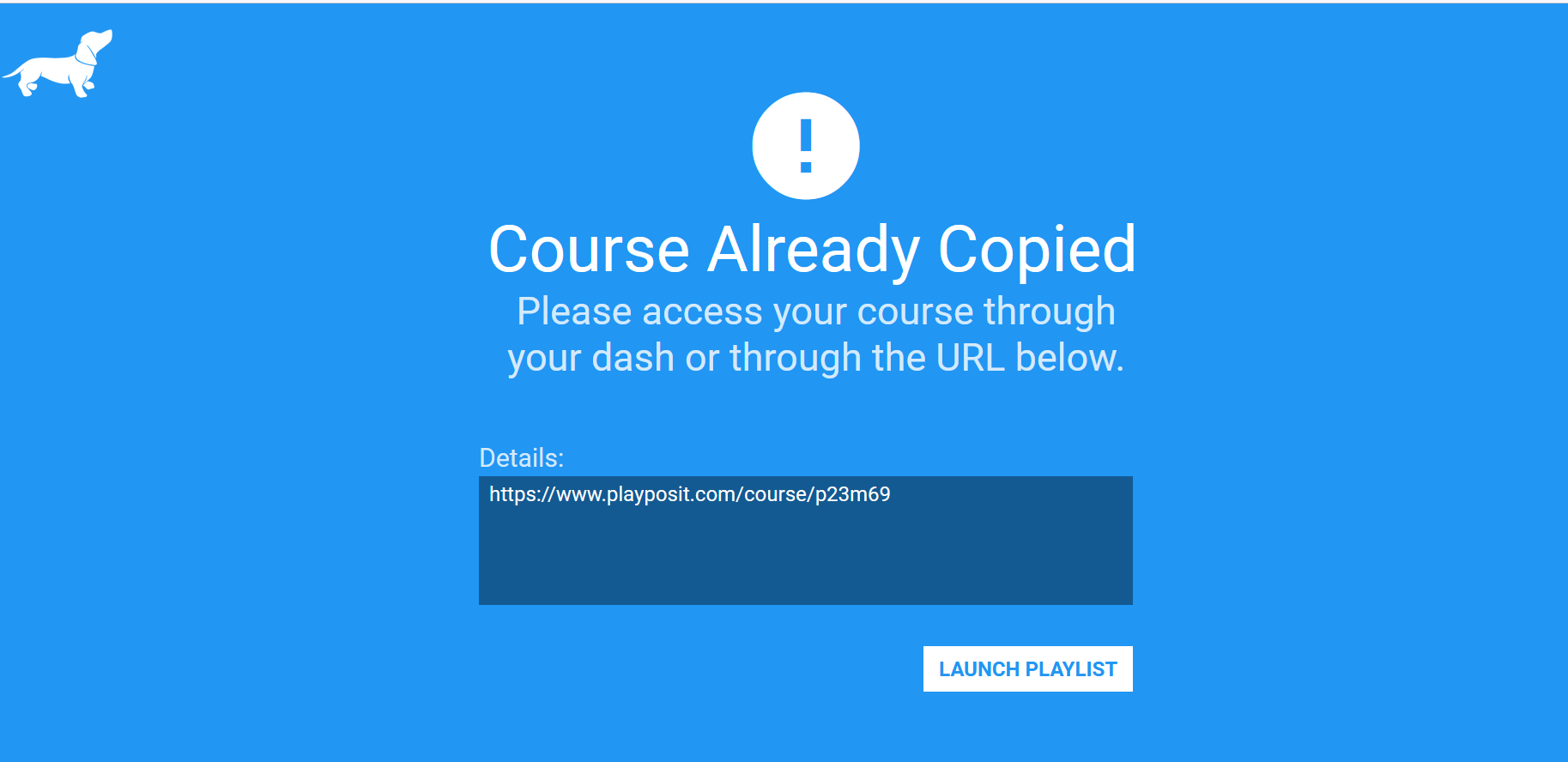
The Playlist will need to be assigned to a new class. To do this:
1. Select Classes from the sidebar menu. 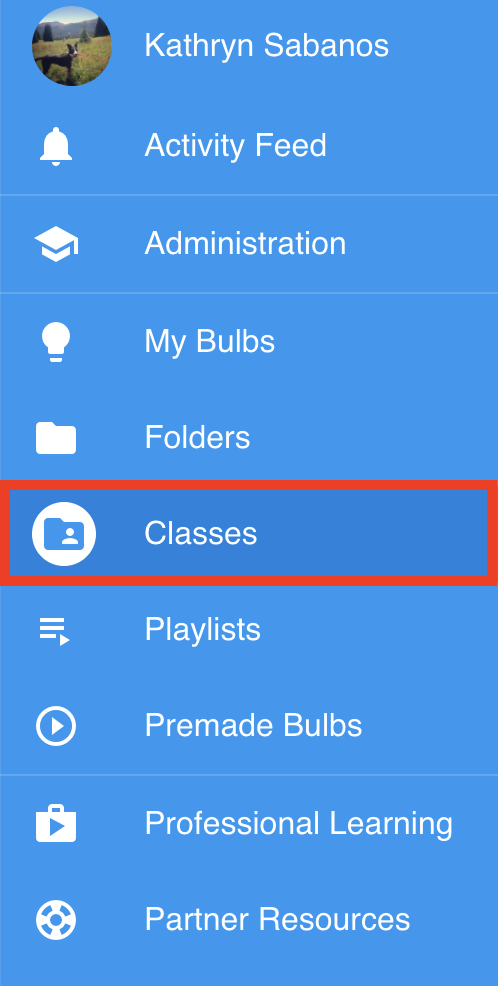
2. Click Add New Class. 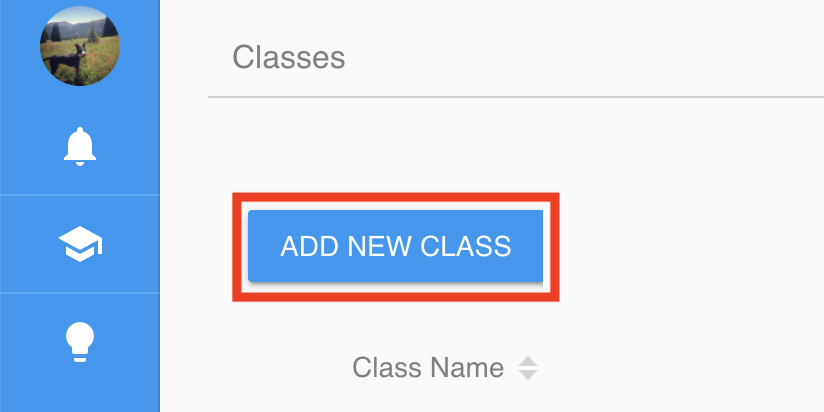
3. Name the class, add an optional folder color, then click Save. 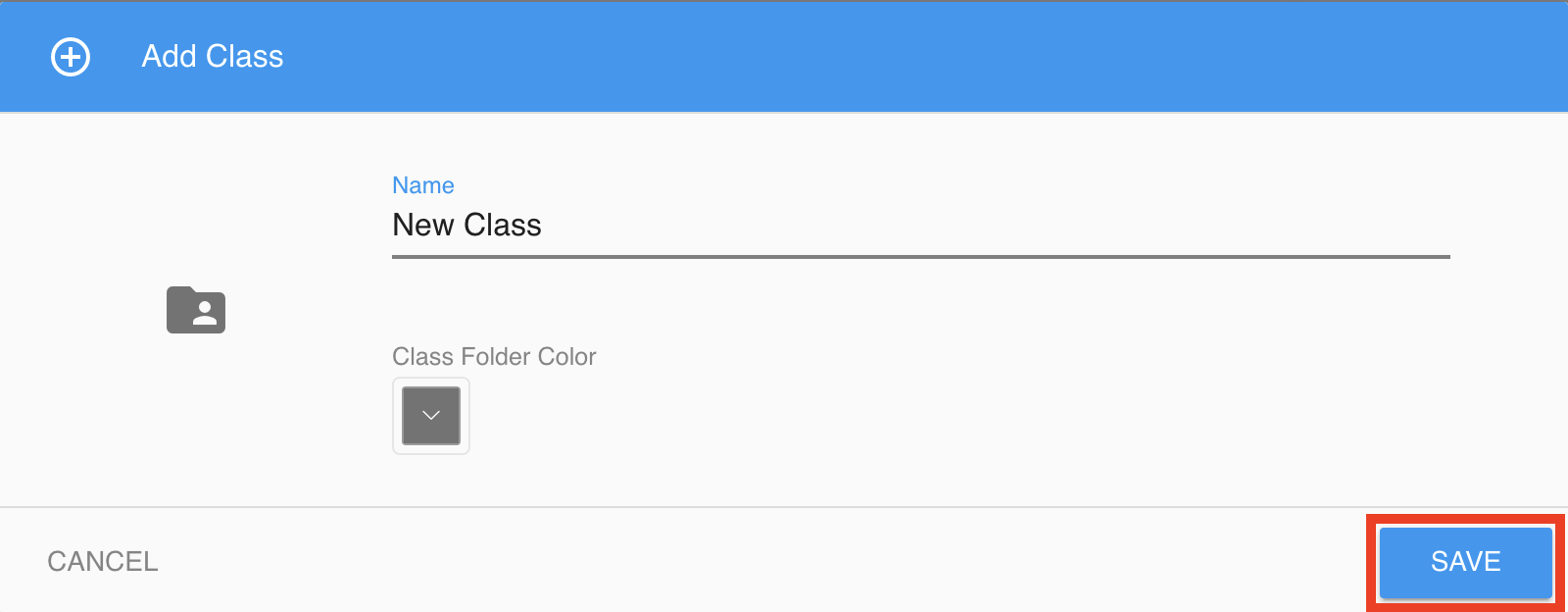
4. Select Playlists from the sidebar menu. 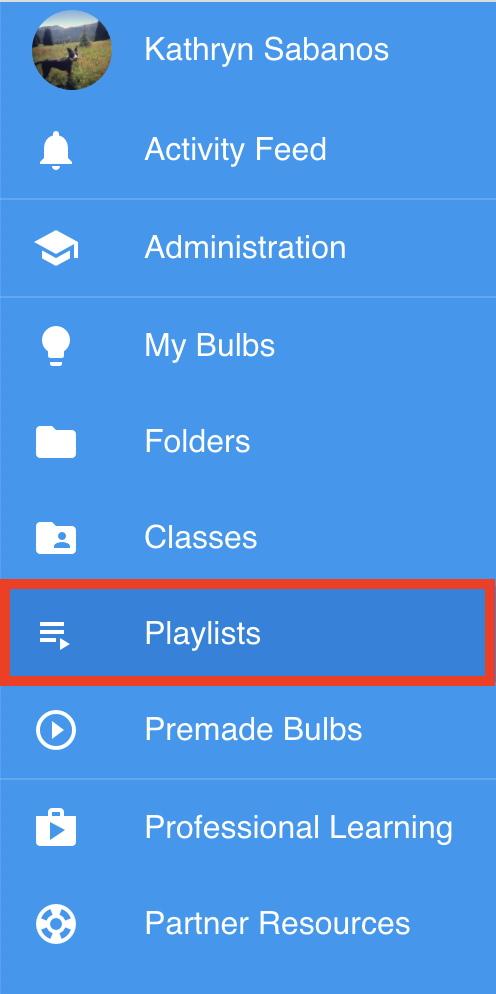
5. Click the Playlist thumbnail or the triple dot menu next to the playlist and select Assign. 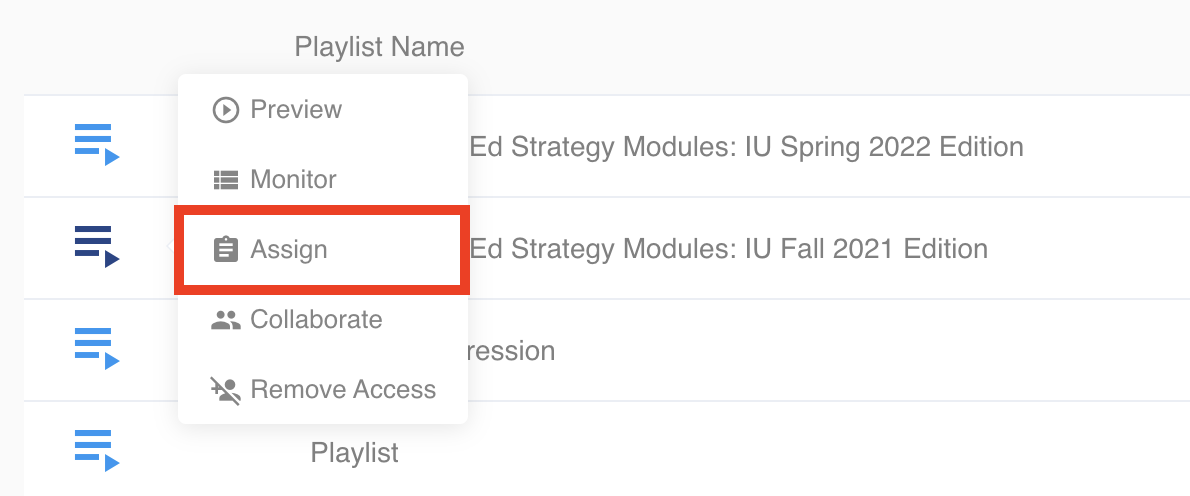
6. Select a due date for the playlist then click Link.
Note: The Playlist will still be available to learners after this due date. 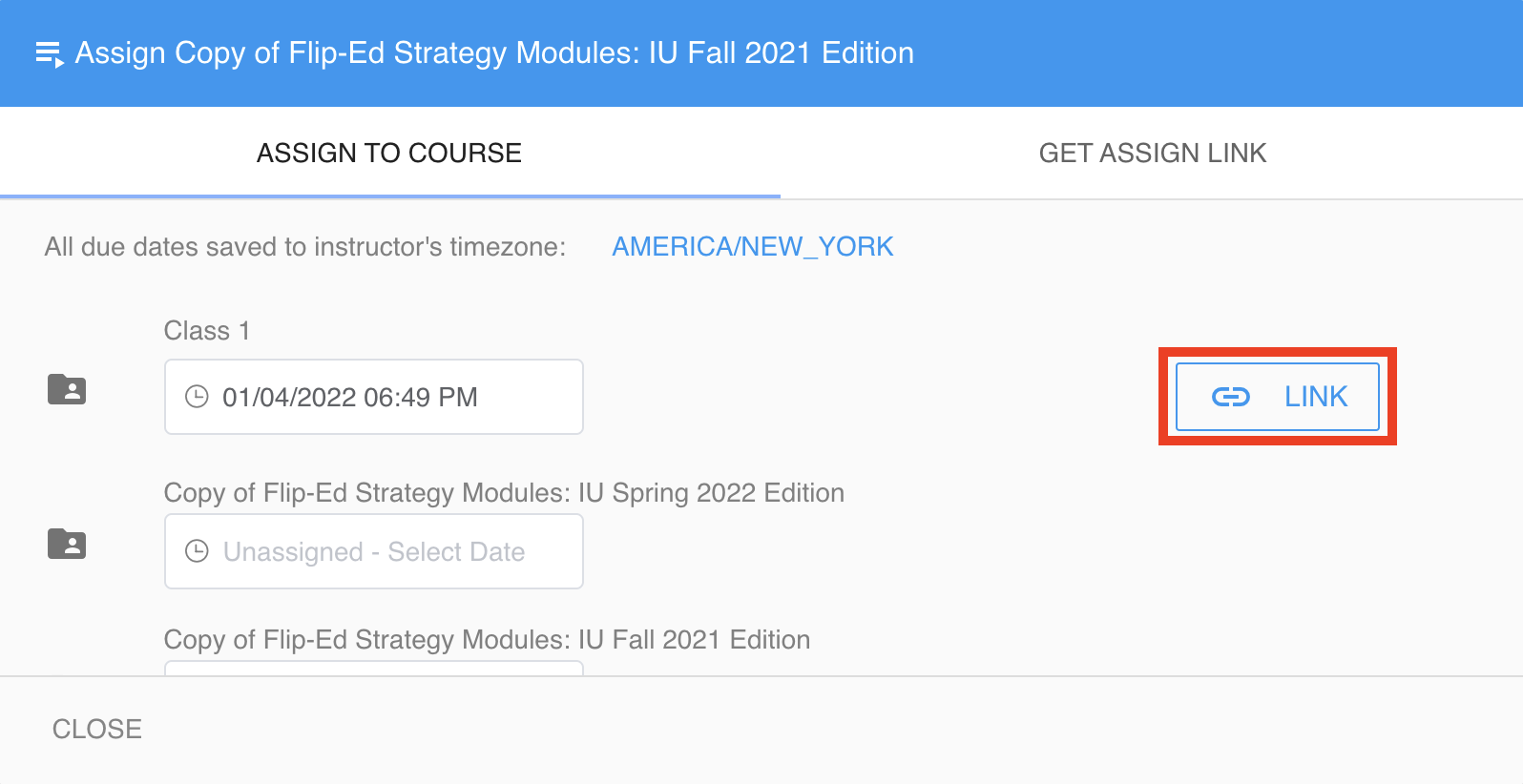
7. Copy the link. This is the link that will be provided to learners. 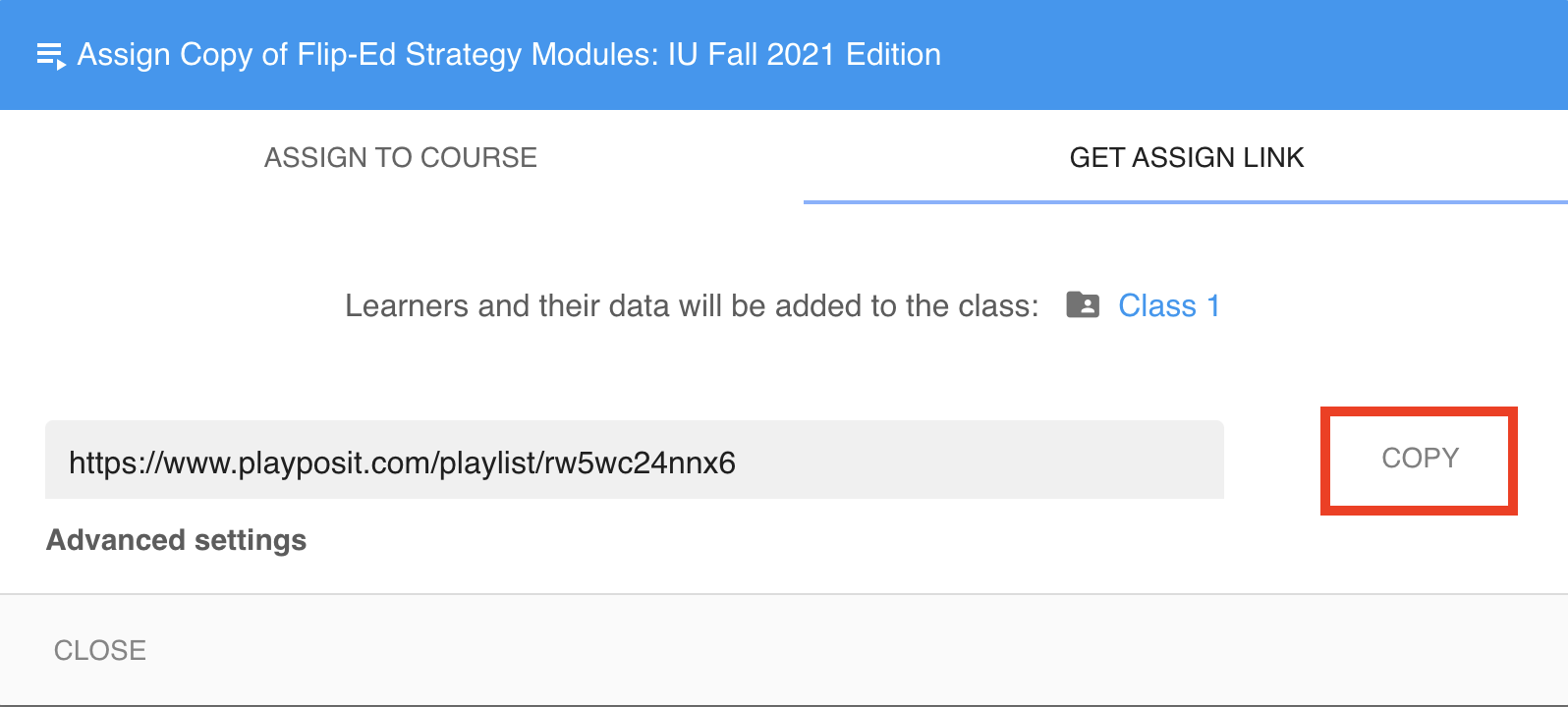
Generate an assign link to share with learners
Instructors who are not part of an institutional license
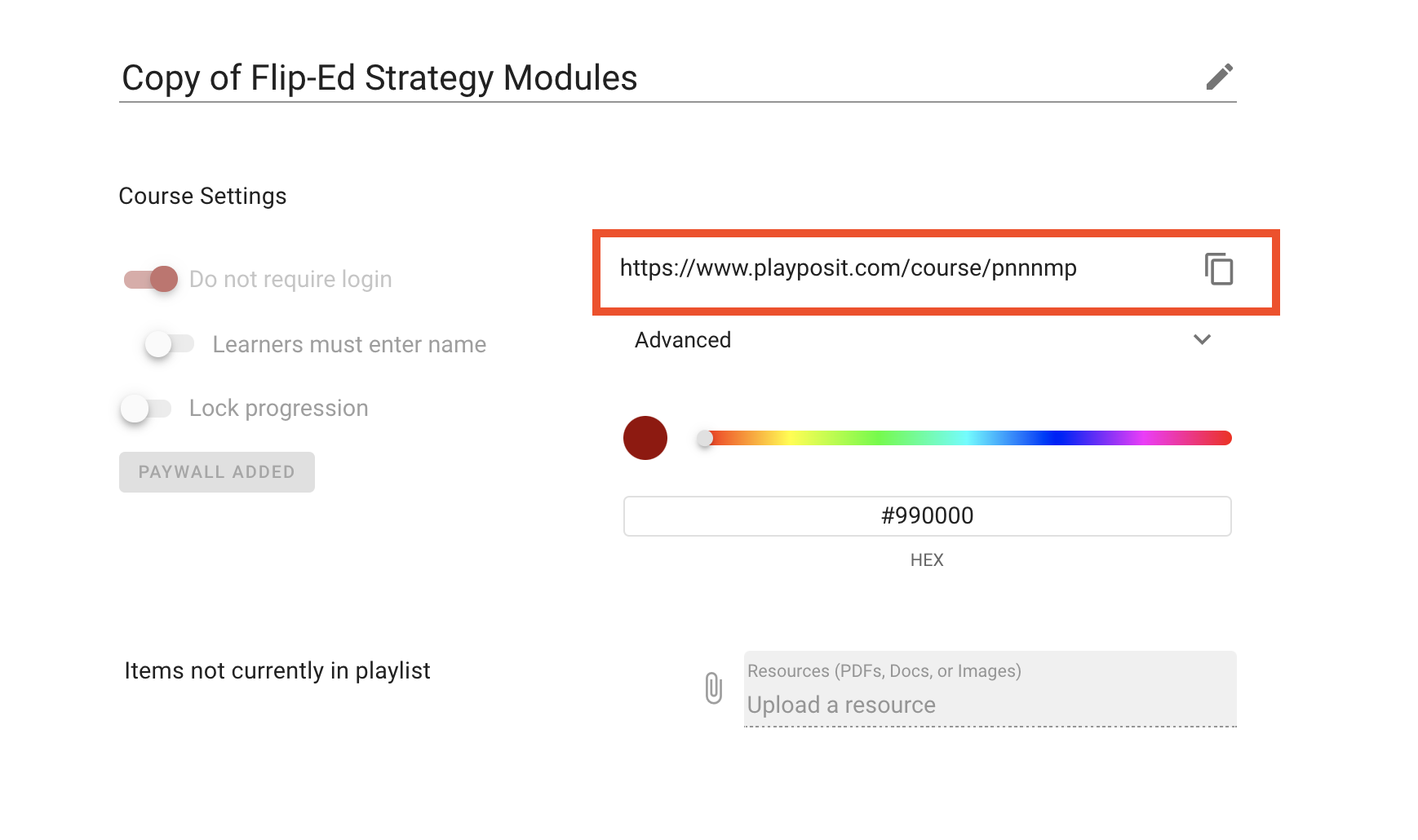
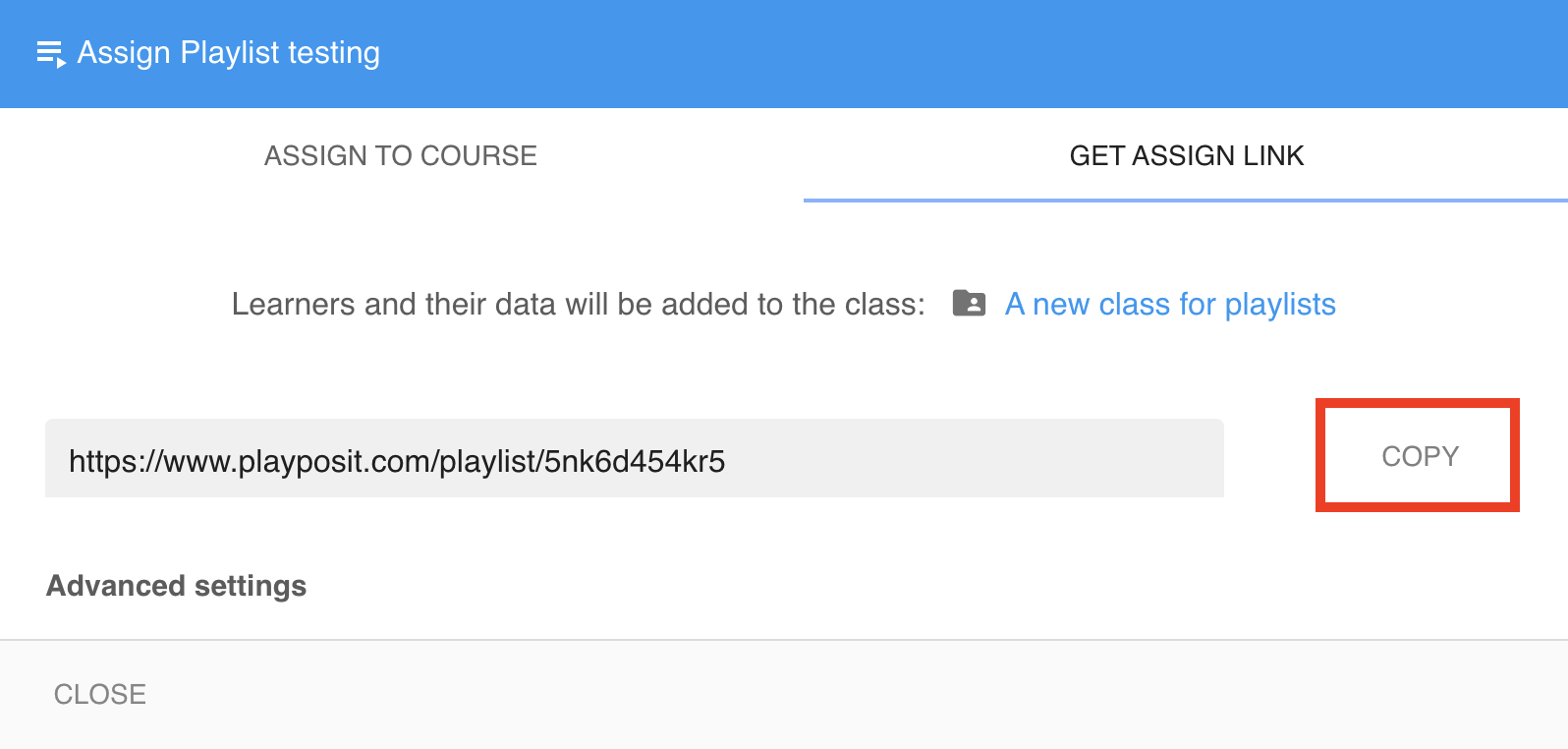
- When you are ready to assign the playlist, copy the URL from the playlist designer and provide it to learners. Note: Learners will need to create Student PlayPosit accounts prior to accessing the link.
Click here for more information about the learner workflow.
Instructors who are part of an institutional license
Note: Create a class prior to assigning the playlist. Click here for directions on how to create a class.
- Select Playlist from the sidebar menu.
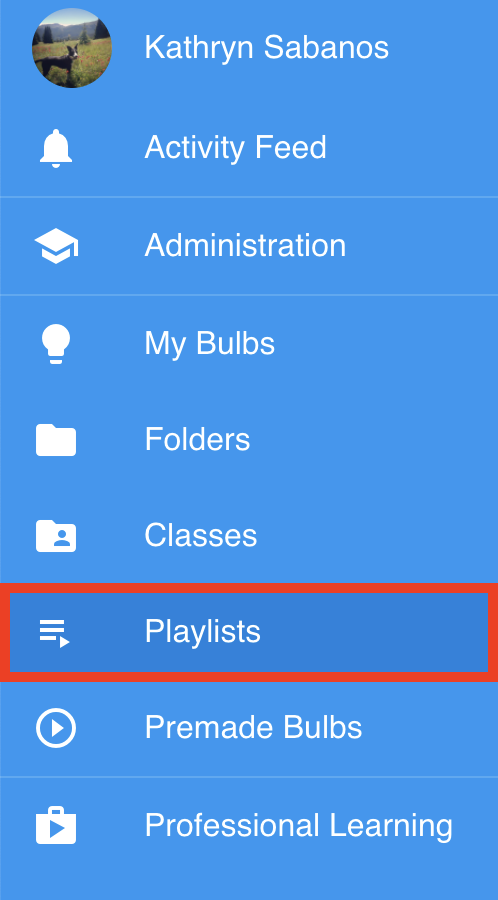
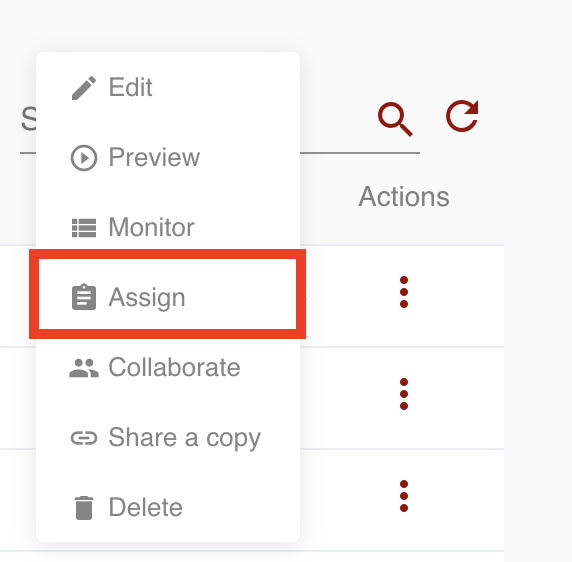
- Click the playlist icon or the triple-dot menu and select Assign.
- Set a due date under the class and click Link.
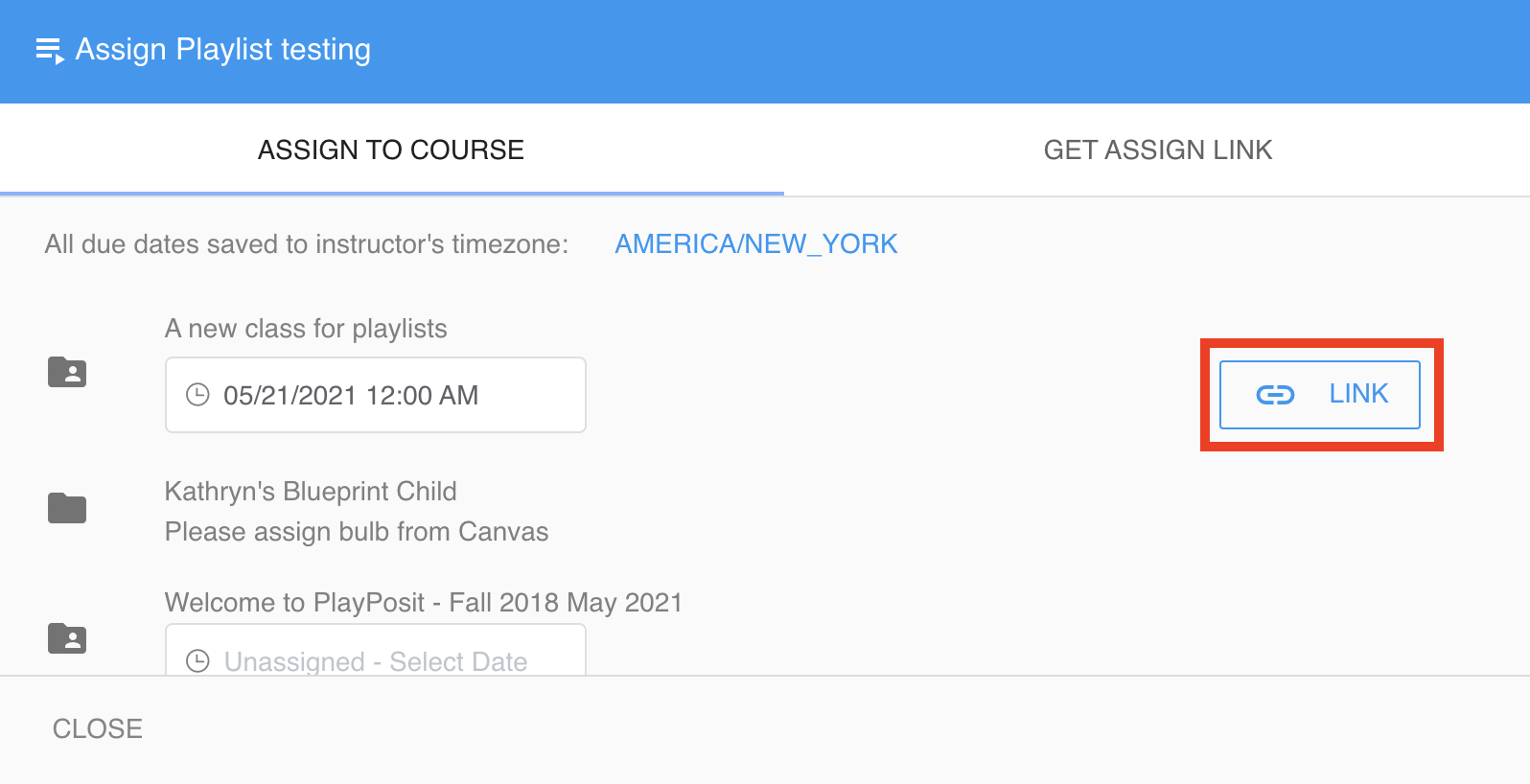
- Copy the link then provide learners this link to complete the playlist.
Return to playlist
Instructors who are not part of an institutional license.
- To return to the playlist, log back into your PlayPosit account.
- Select Classes from the sidebar menu.
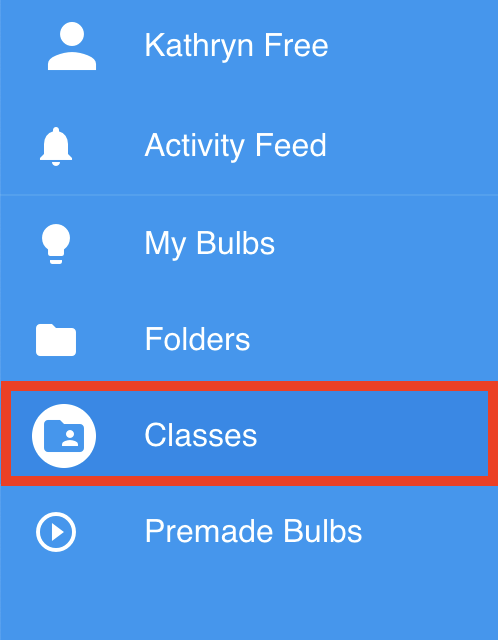
- On the Classes page, there will be a class titled with the same title as the playlist.
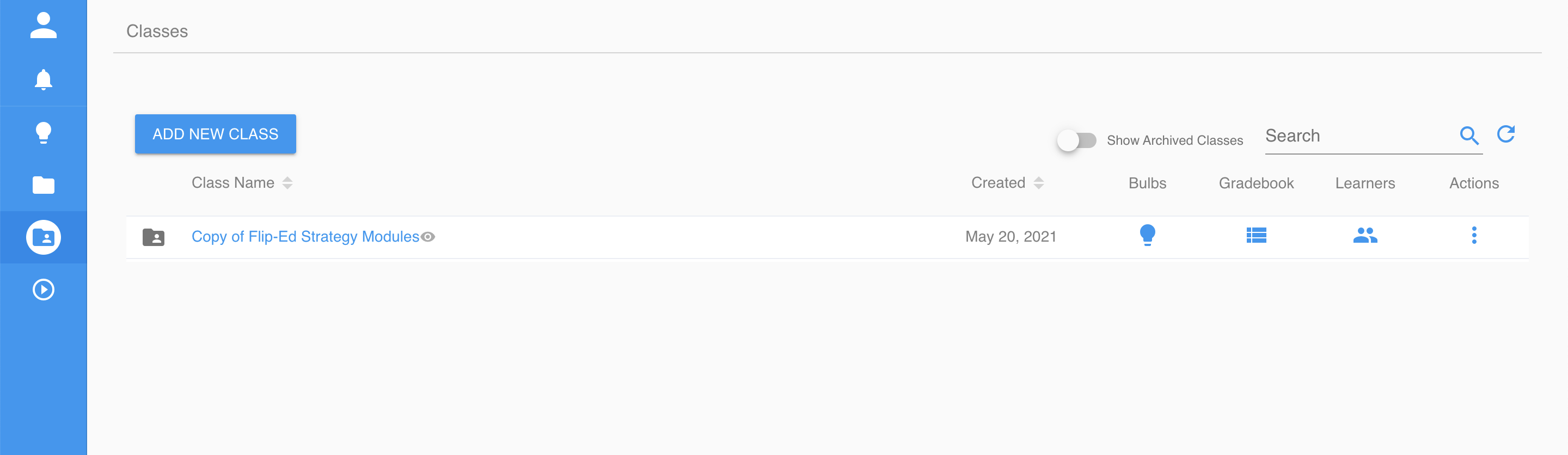
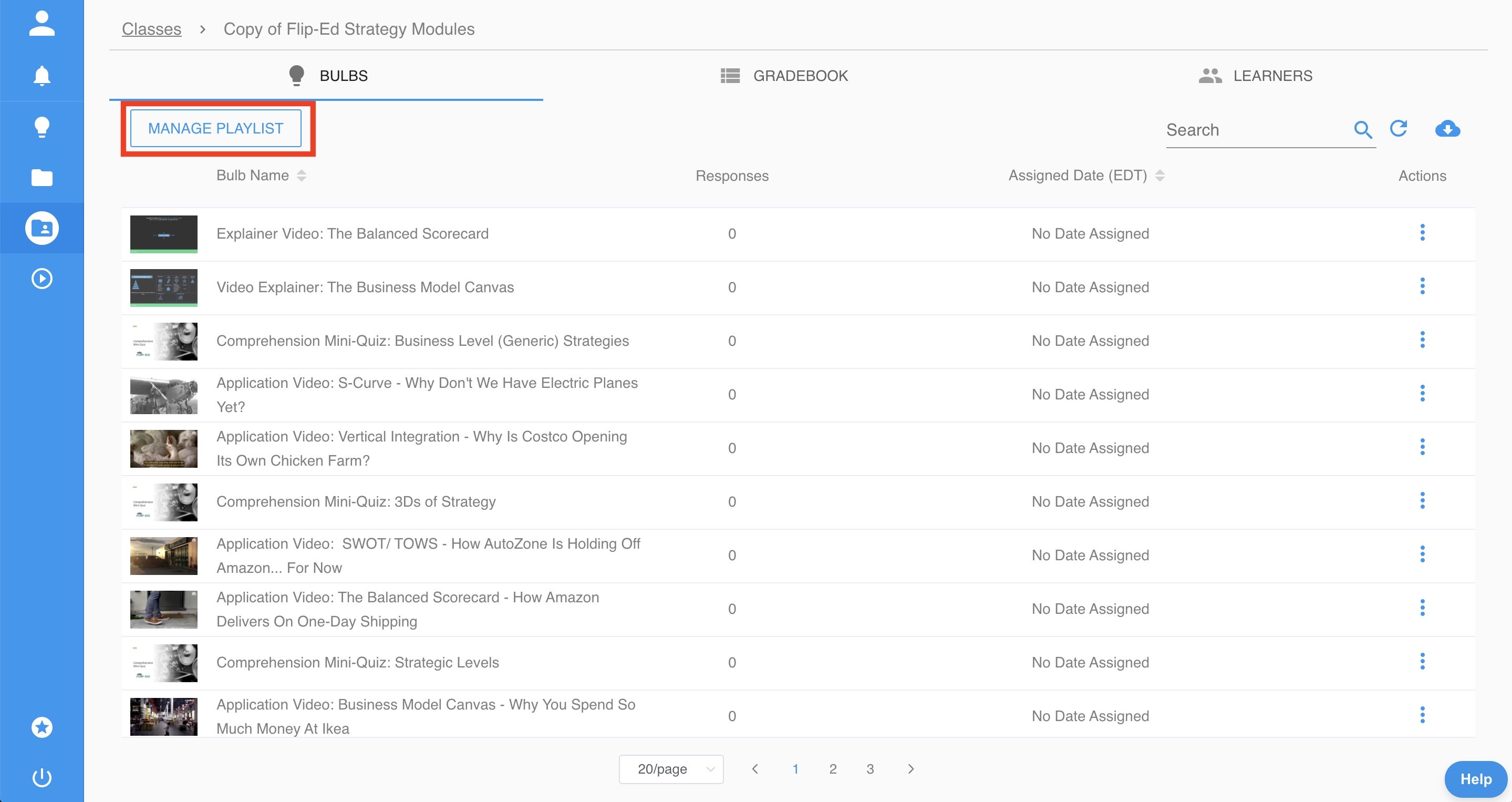
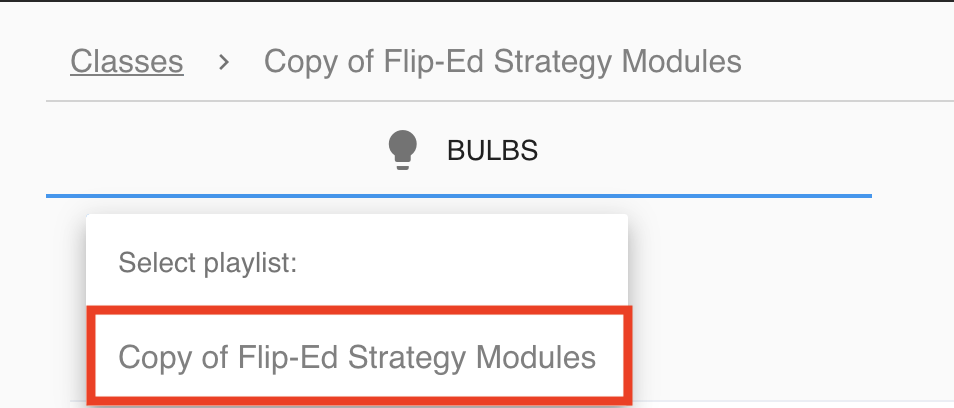
- Select the class then click Manage Playlist and the name of the playlist to open the Playlist designer page.
Instructors who are part of an institutional license.
- To return to the playlist, log back into your PlayPosit account.
- Select Playlist from the sidebar menu.
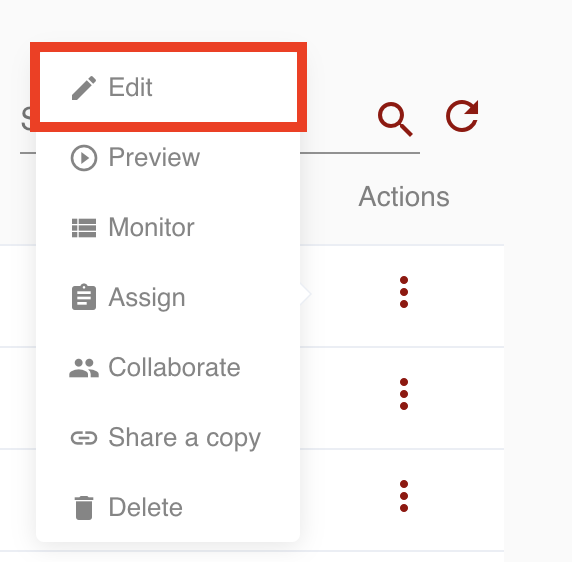
- Click the playlist icon or the triple-dot menu and select Edit to open the playlist designer.
Monitor learner responses
- To monitor learner responses, select Monitor inside the Playlist designer.
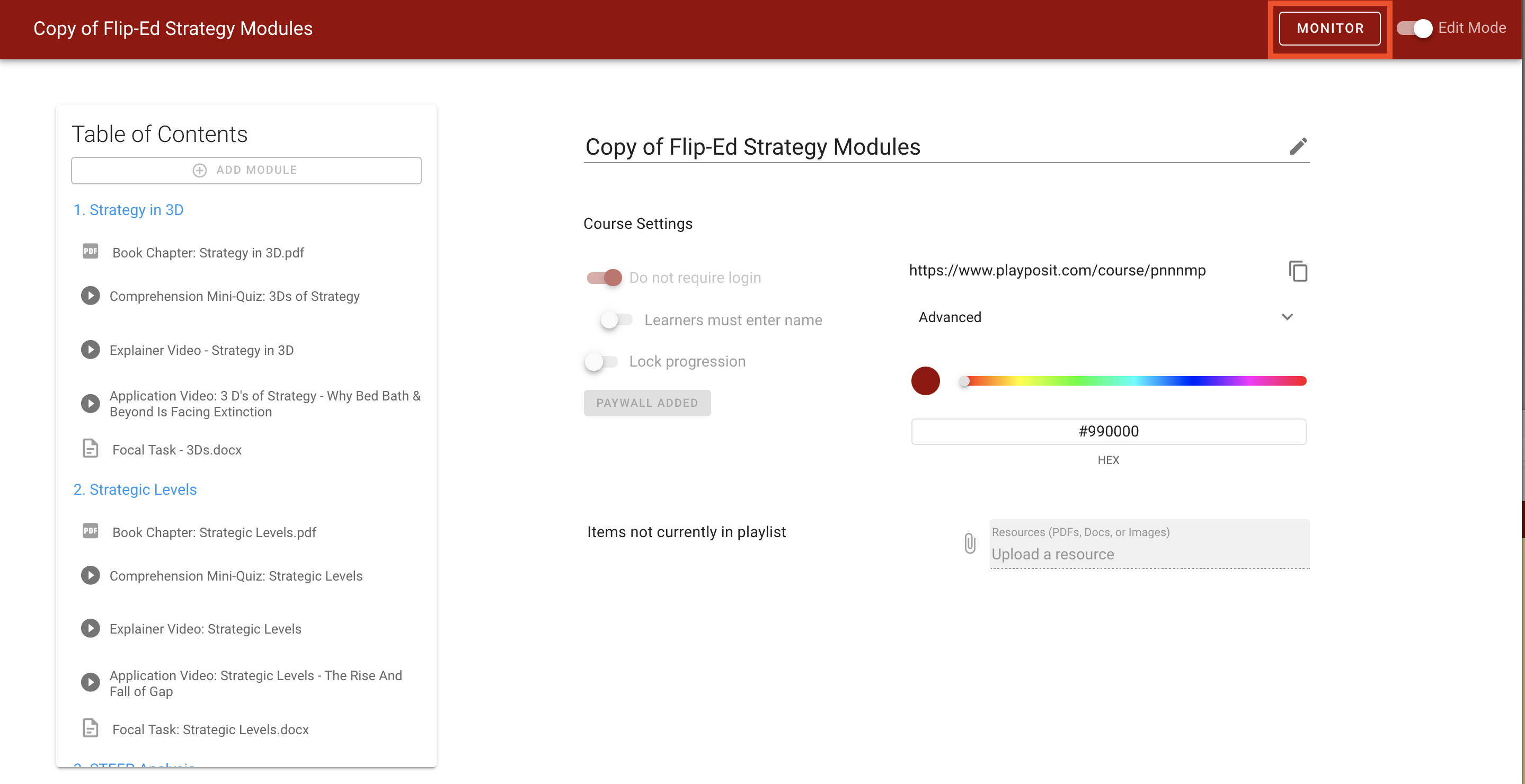
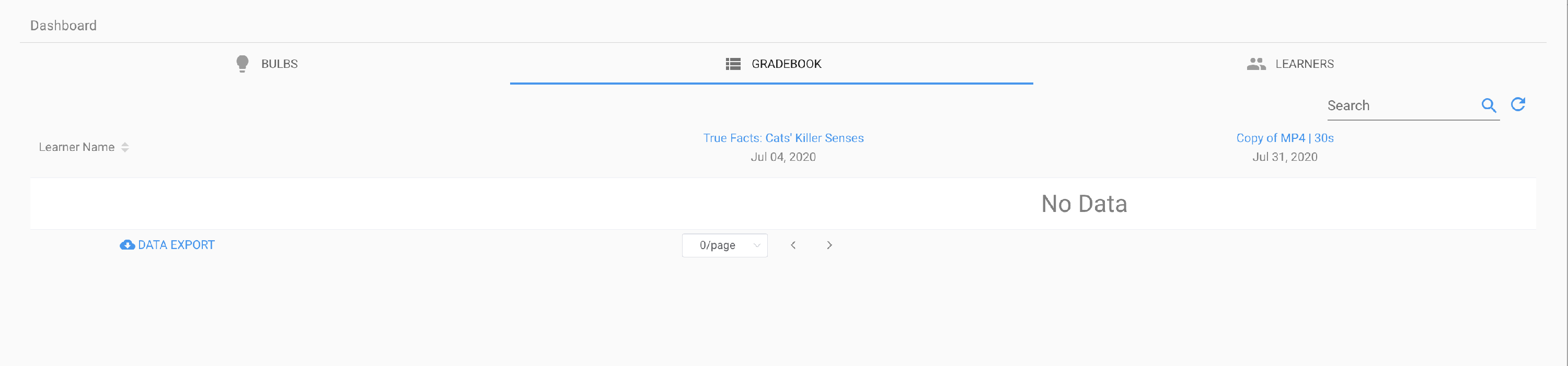
- This will display the gradebook view where each learner's score for each of the bulbs within the module will be stored. Click here to learn more about other analytics that are available.