.png)
Seesaw
In this article
There are a few simple steps to integrate PlayPosit with your Seesaw class.
Video Tutorial
Assign a bulb to learners
Follow these steps below to add a PlayPosit assignment to your class.
- Log into PlayPosit, select Classes on the left sidebar menu, and click Add New Class. For more detailed instructions, click here.
- Once you have your class created, you can either upload learners or post the Join Class URL as an activity or announcement. For more information on how to add learners, click here.
- Log into Seesaw and navigate to the class you would like to assign a PlayPosit assignment to.
- Click Add and then select Assign Activity.
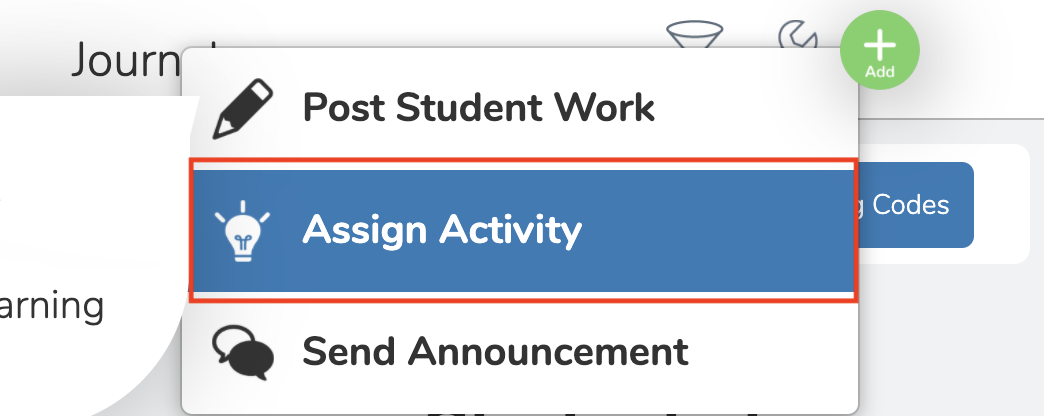
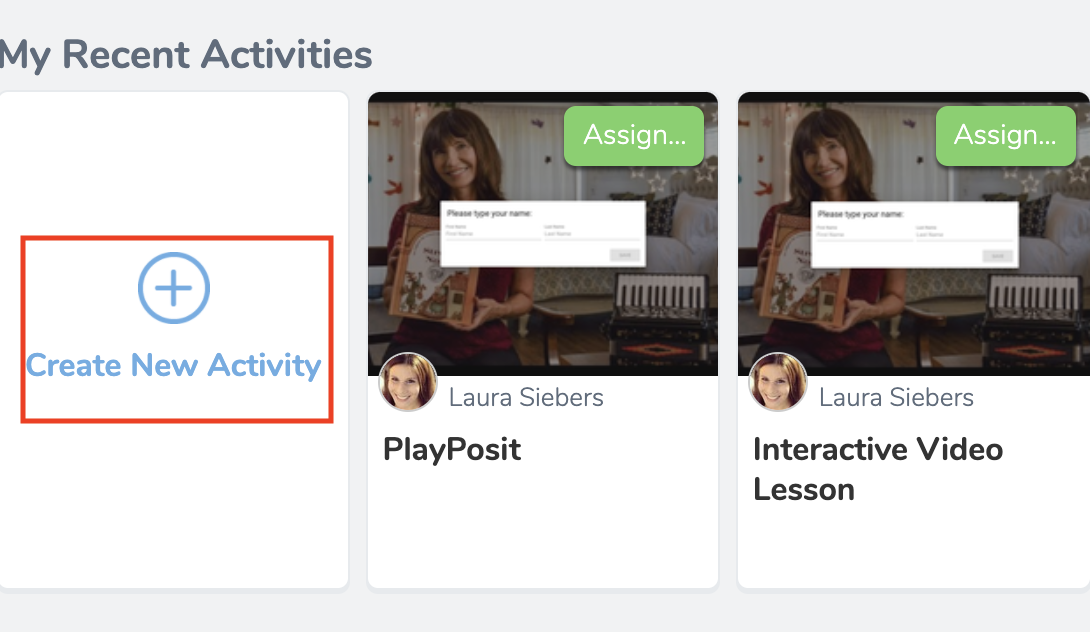
- Inside your library, select Create New Activity.
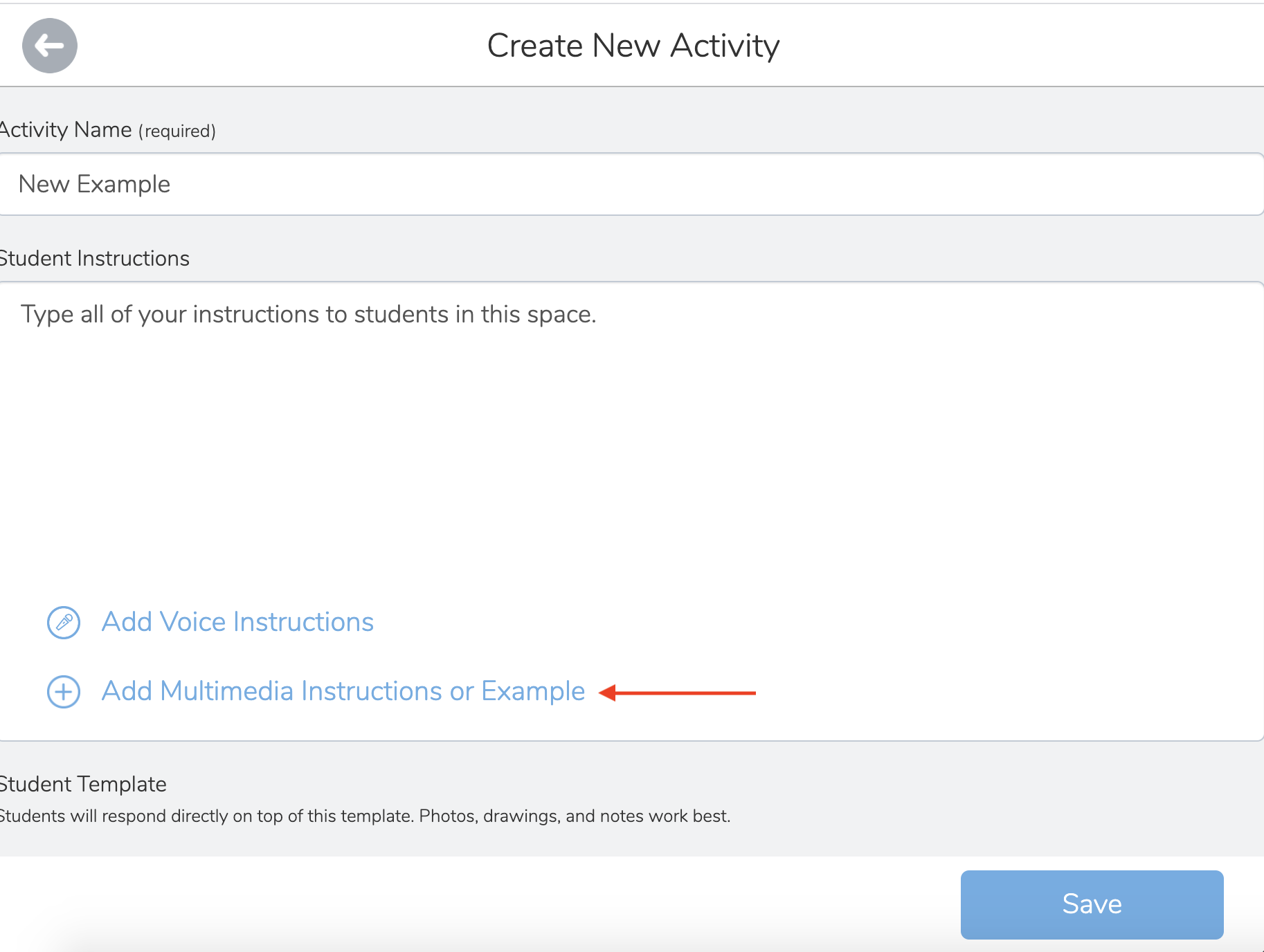
- Add a title and a description/instructions, then select Add Multimedia Instructions or Example.
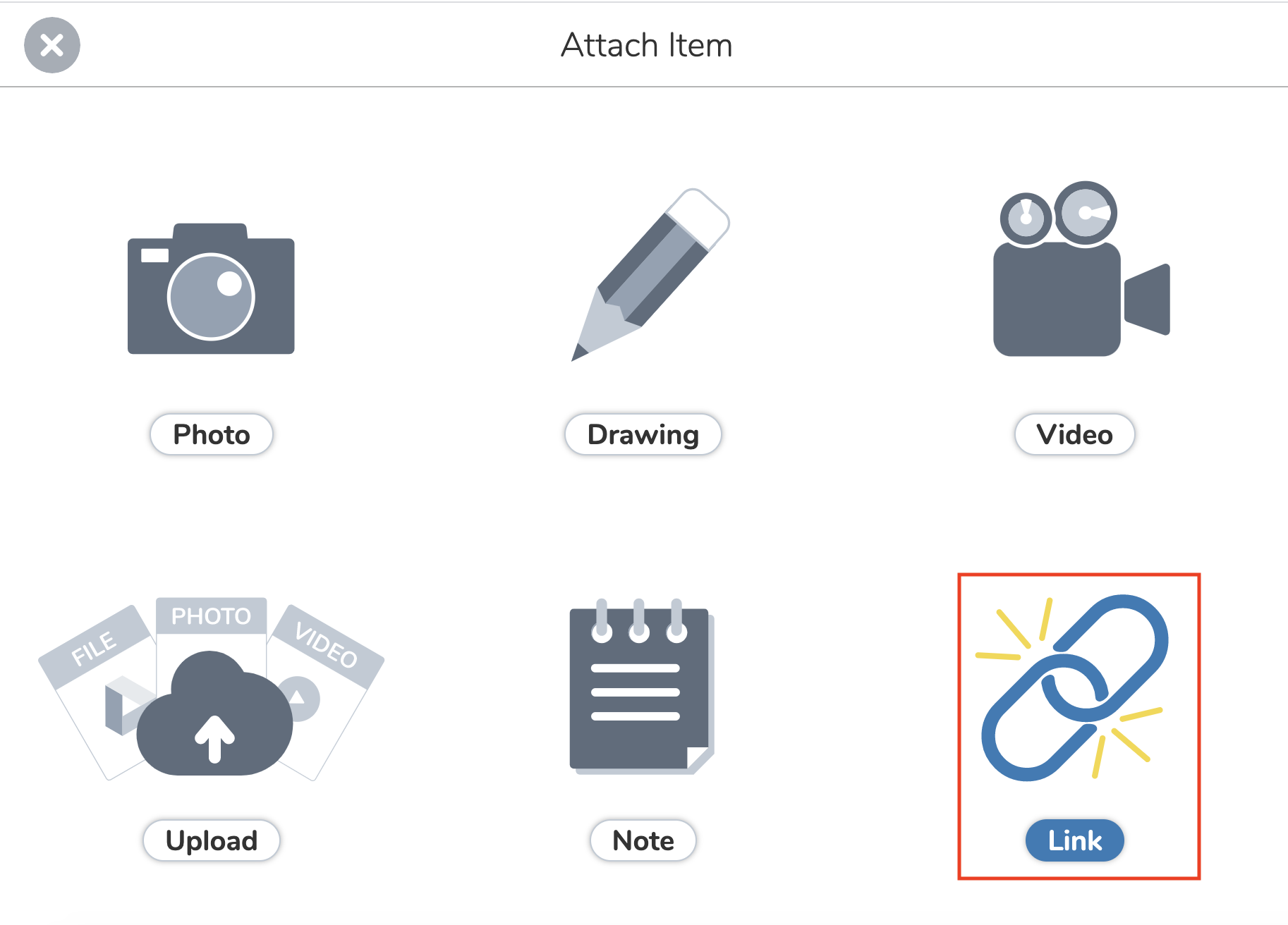
- Select Link.
- Navigate to your PlayPosit account in a different tab or window and copy the Assign link. For more information on how to find the Assign link, click here. *Do not post a preview link. If logging in is difficult for learners, select Do not require login under the Advanced settings before copying the link. This will allow for learners to enter their first and last name instead of logging in.
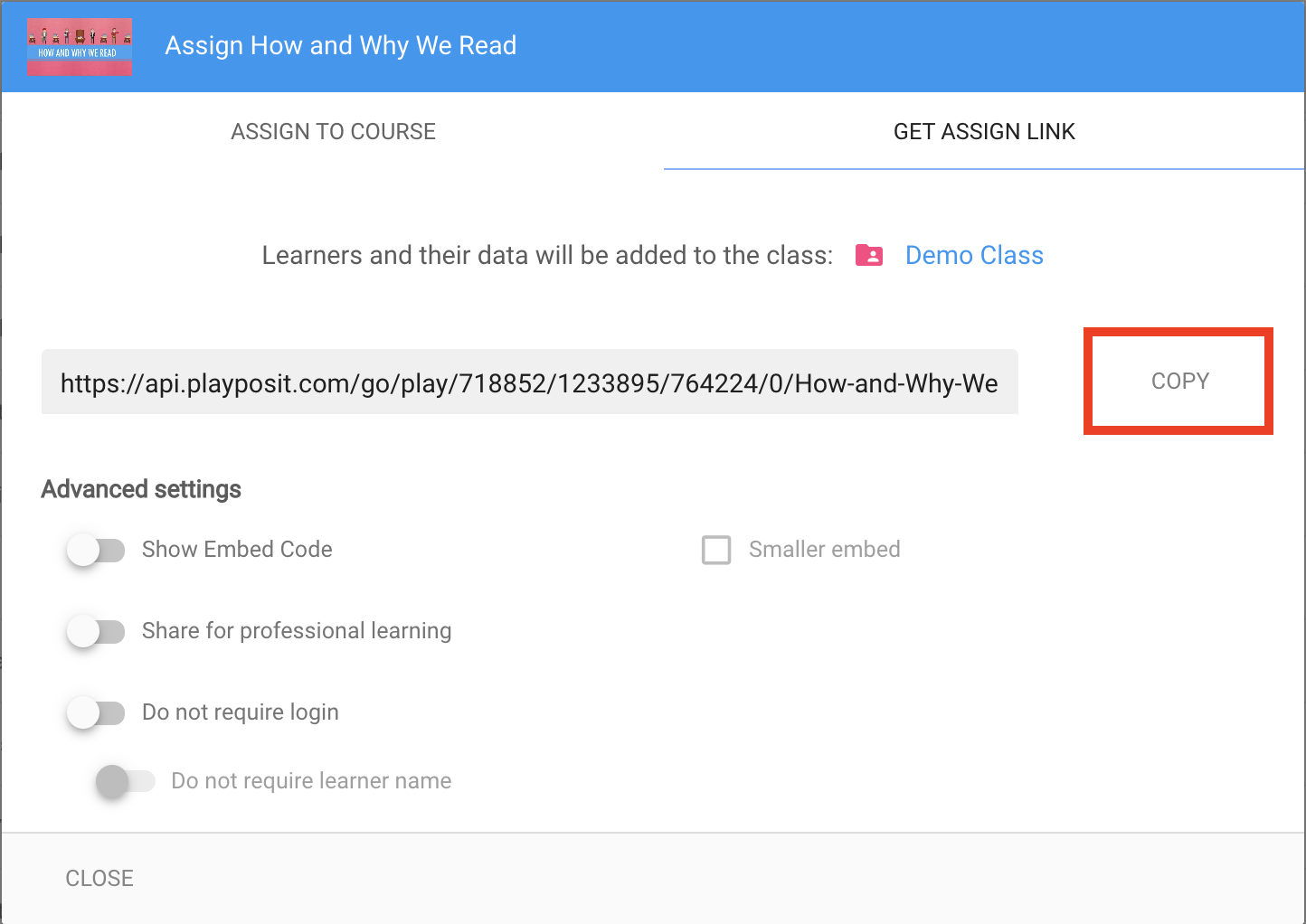
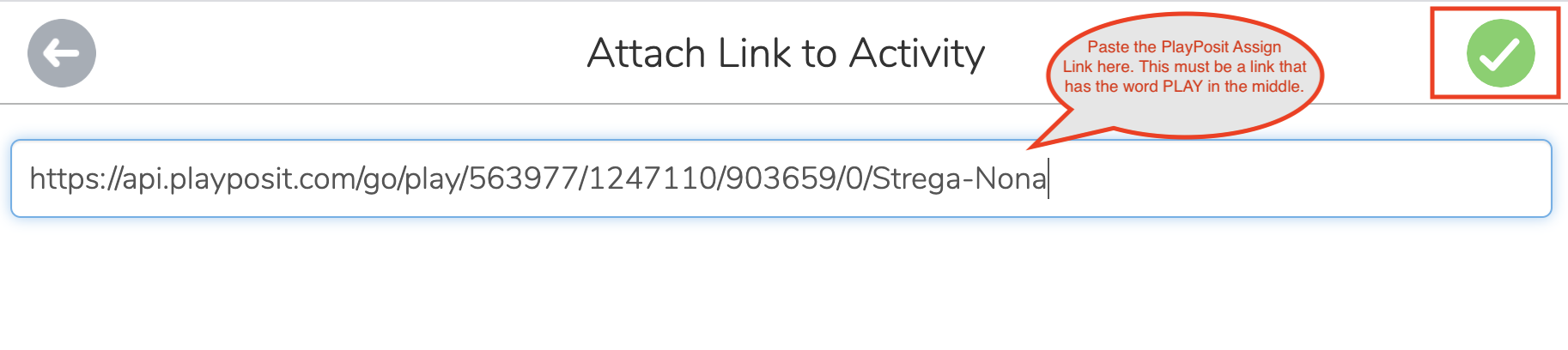
- Return to the Seesaw page and paste the Assign link in the Attach Link to Activity box. Then click the check mark box.
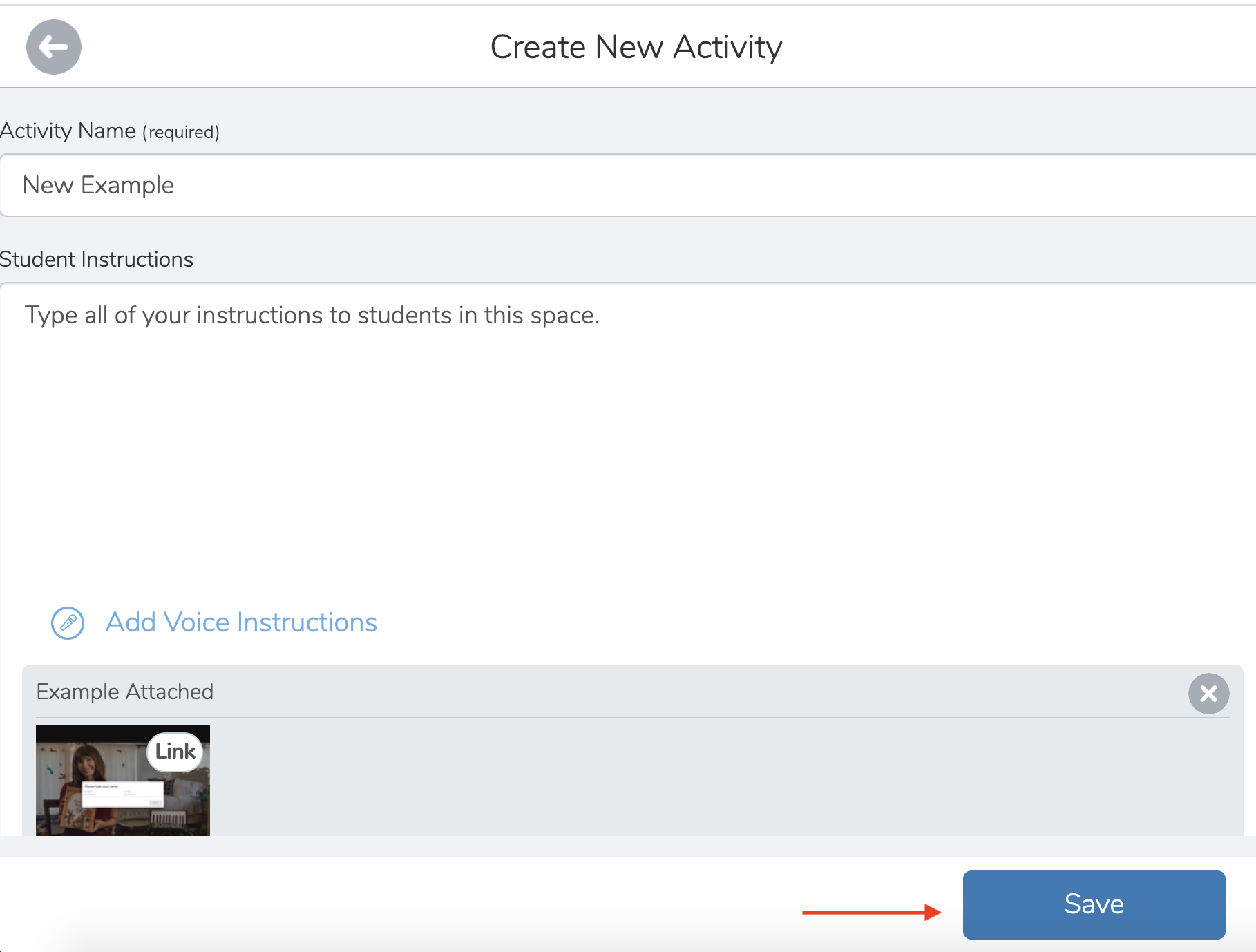
- You will see what the bulb will look like for learners. Select the check mark box and then click Save.
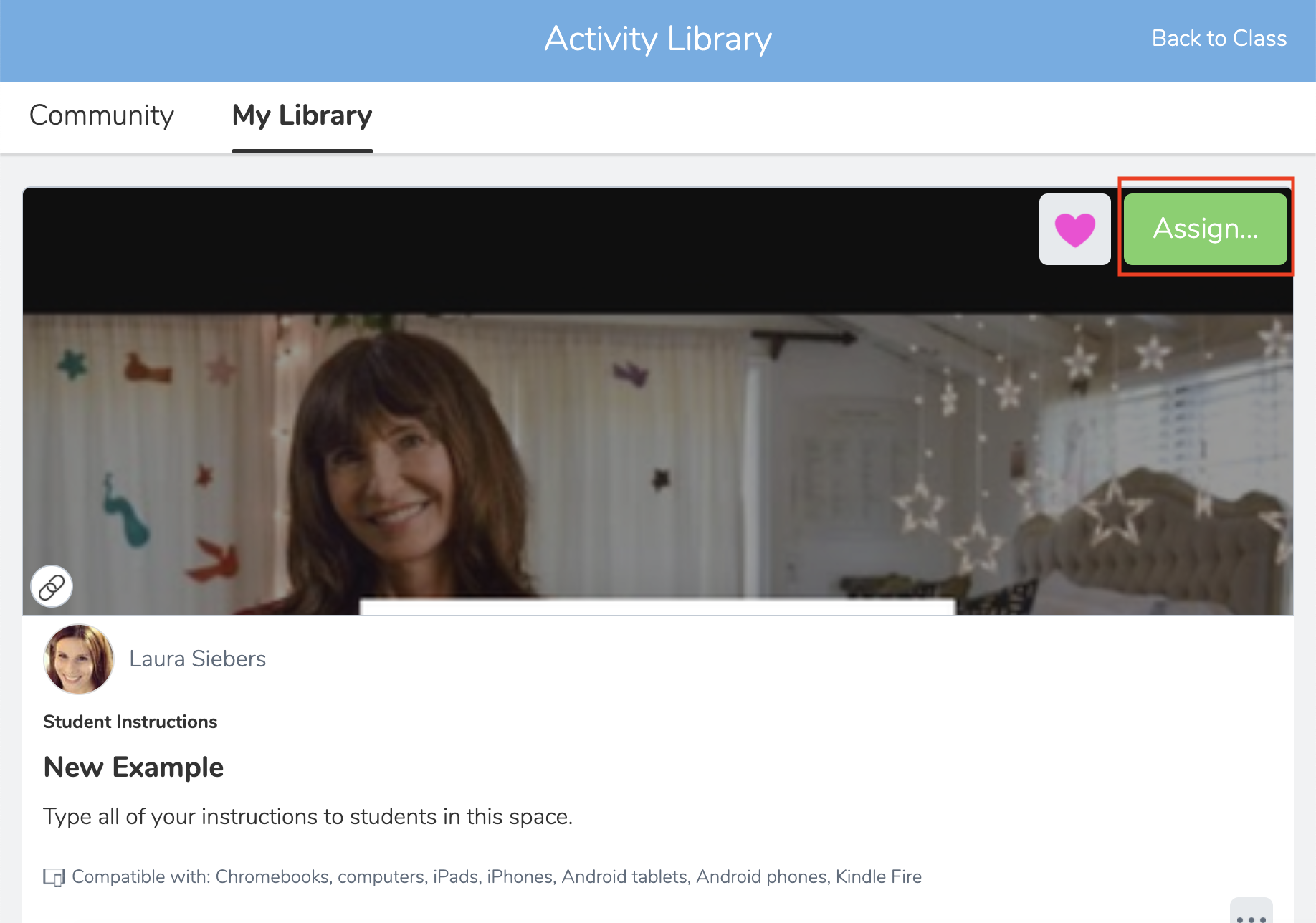
- Now that your bulb is in your library, select Assign in Seesaw.
- Choose the class to assign the bulb to.
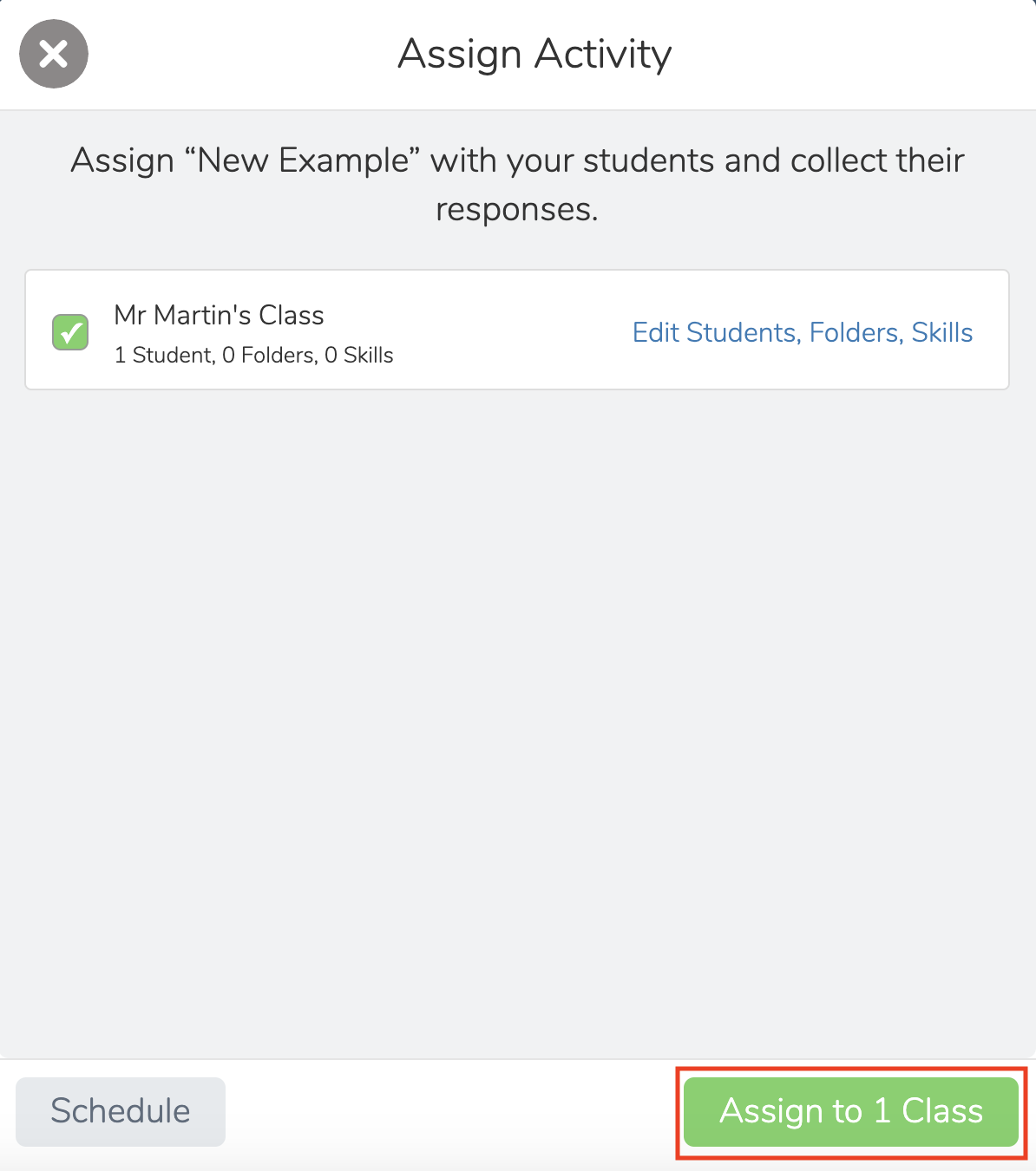
- A confirmation in Seesaw will pop up. You can click View Activity to view the assignment in the class.
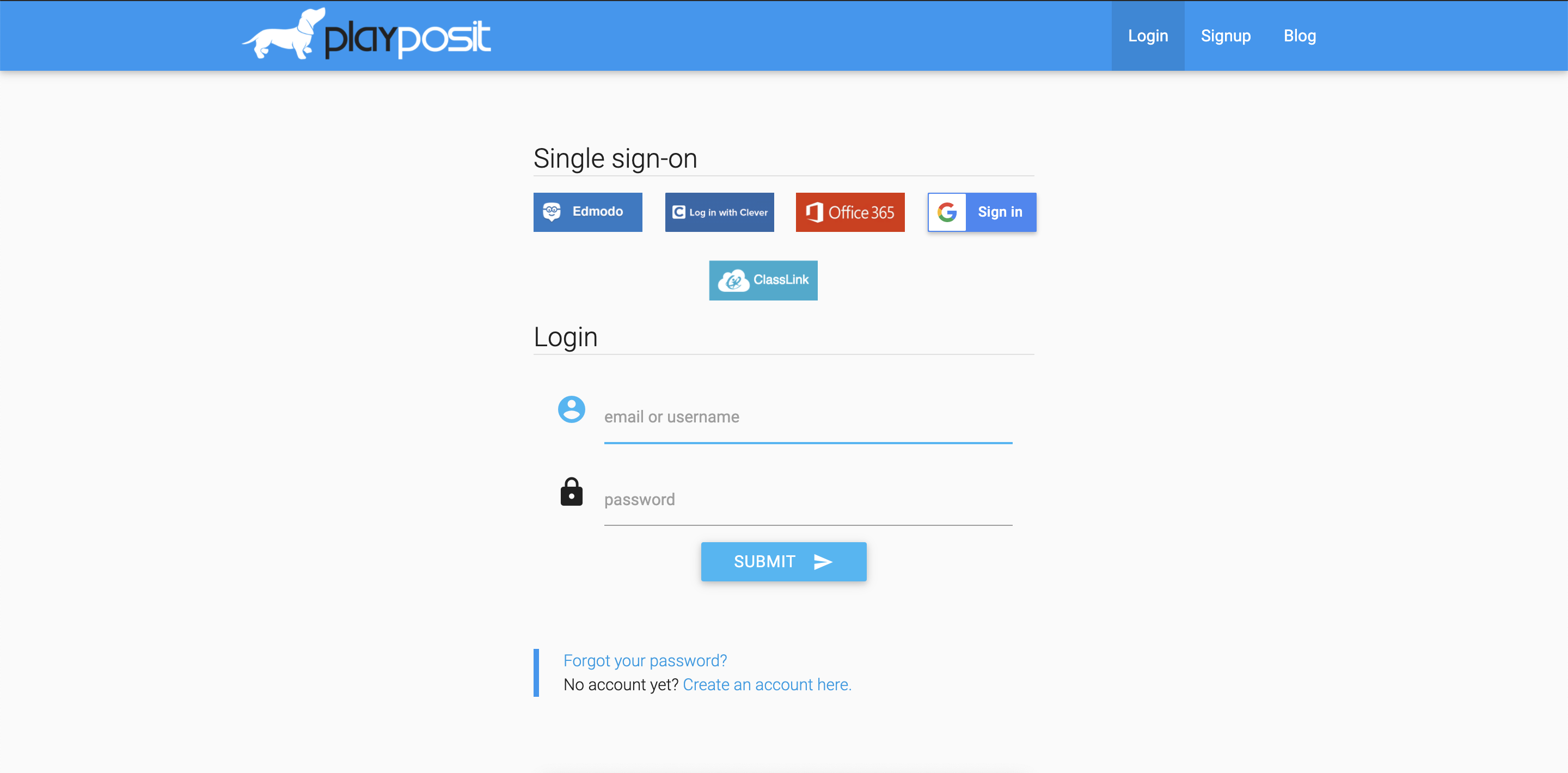
- When learners click the assignment link in Seesaw, they will be prompted to log into PlayPosit. Instruct students to log in with the SSO option your school uses.
Monitor learner responses
You will monitor student responses from your PlayPosit account, not Seesaw.
- Navigate to the class in PlayPosit that you assigned the bulb to.
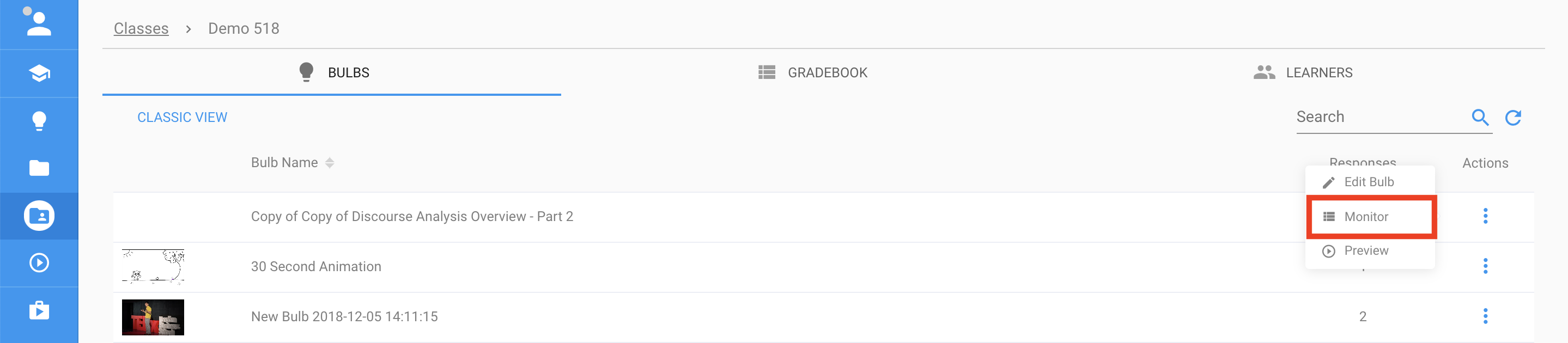
- Select the bulb thumbnail or the triple dot menu next to the bulb and select Monitor.
- For more information on the analytics, click here.
Note: PlayPosit does not connect to Seesaw's assessment tools.